
Loading...

AI Image Combiner

Upload at least two images and give each one a role. Use MiniMax H3 Image Edit to combine a subject, setting, and optional style reference into one new picture.

Images
0 / 16
0/5000
Aspect Ratio
Resolution
Output format
Required credits
4

Sample Images

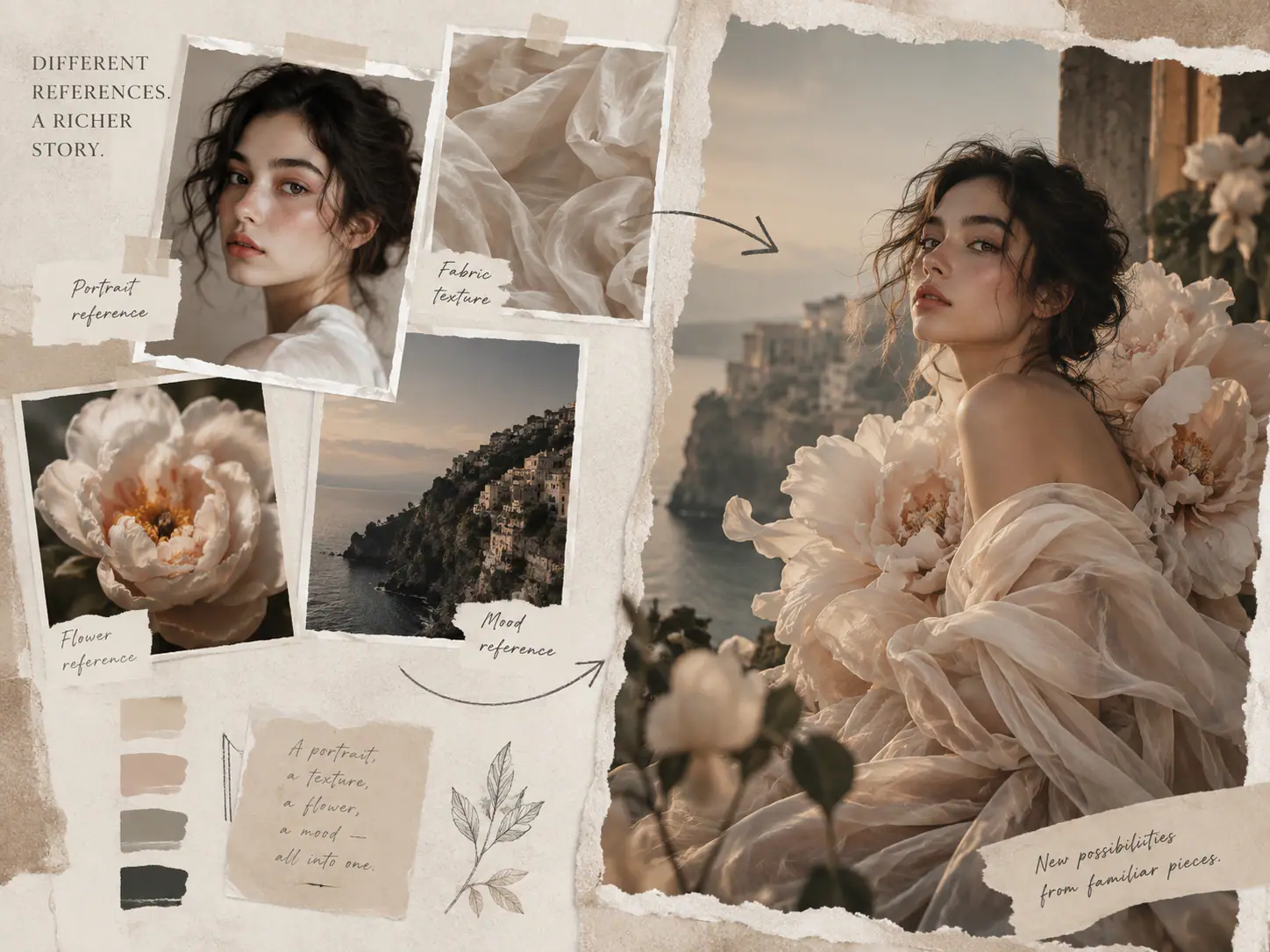
Four reference panels showing a portrait, sheer fabric, a pale flower, and a coastline beside a floral portrait on the cliffs

How to Combine Multiple Images with AI

  1. Add a reference for each role

    Upload two or more images. Put the main subject first, then add the setting, prop, or style you want to borrow. If two pictures show the same product, choose the view that best matches your final camera angle. Add a second view only when it shows a detail you want to use, such as a strap hidden behind the front view.

  2. Describe the picture you want

    In the prompt, refer to Image 1, Image 2, and so on in the order shown. Name the feature you want from each one, then describe where the pieces belong. For a scene with two people, say who is on the left, who is on the right, and what they are doing together. Check the image numbers again if you remove a reference.

  3. Generate and review one composition

    Choose a frame shape for the image you need. A wide frame gives a setting room to read, while a vertical frame suits a standing portrait. Select Generate Image and review the result in Studio. If the placement is close, change one instruction at a time, such as moving a prop away from the subject's face. Download the version you want to use.

What Can You Combine in One Image?

Start with the relationship you want to show. A product sits in a place, a building takes on a different visual style, or a character interacts with an object in a scene.

Place a product in a new setting

A clear product photo can supply the red glaze, rim, and handle of a mug. A second image can supply the table and window. Ask for the mug to sit on the wooden surface with the handle facing right and the window behind it. If the picture is for a listing or campaign, say how large the mug should be in the frame and where to leave room for copy.
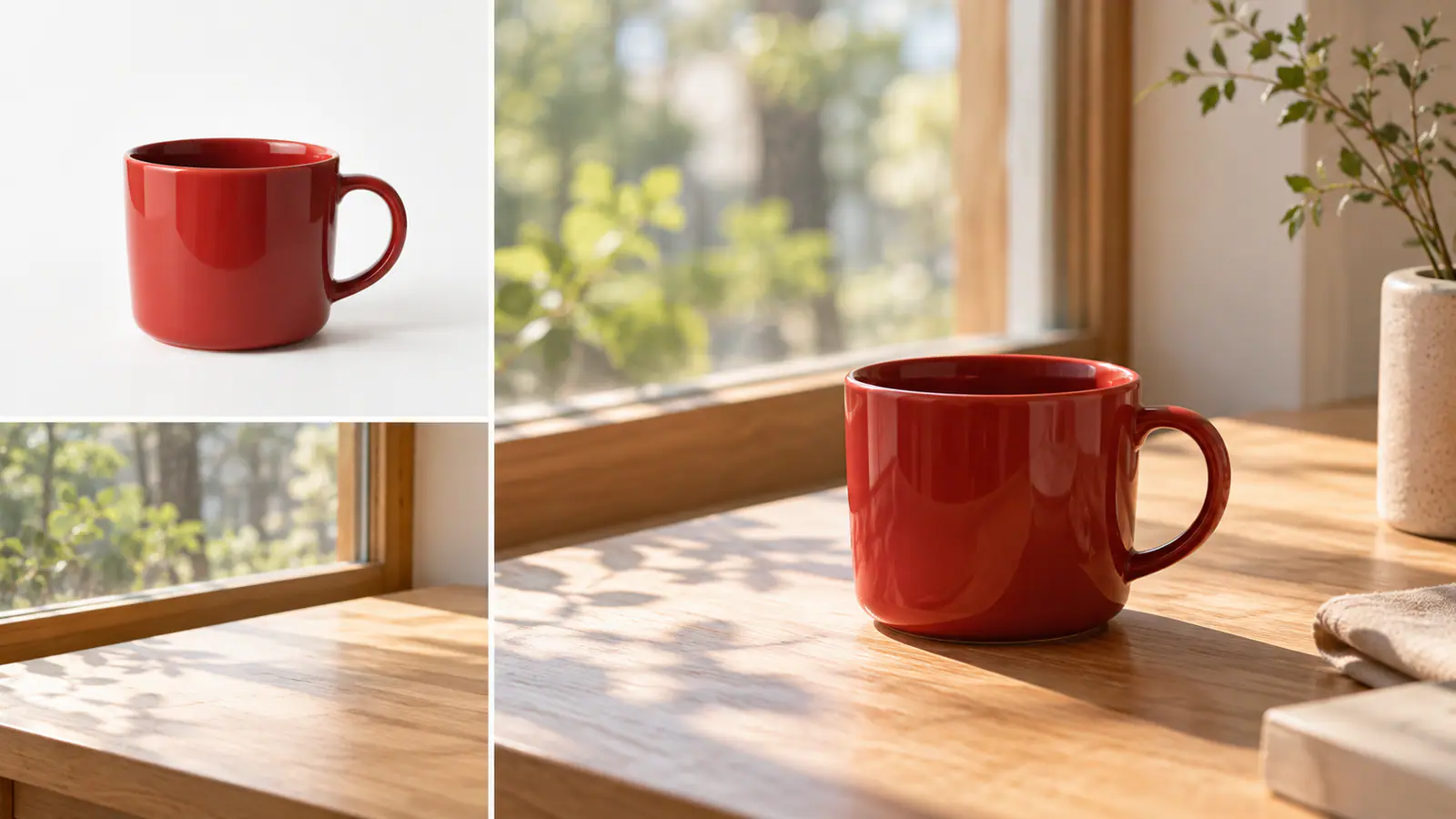
Red mug and a sunlit wooden table beside a composition with the mug by the window

Borrow a palette and brushwork

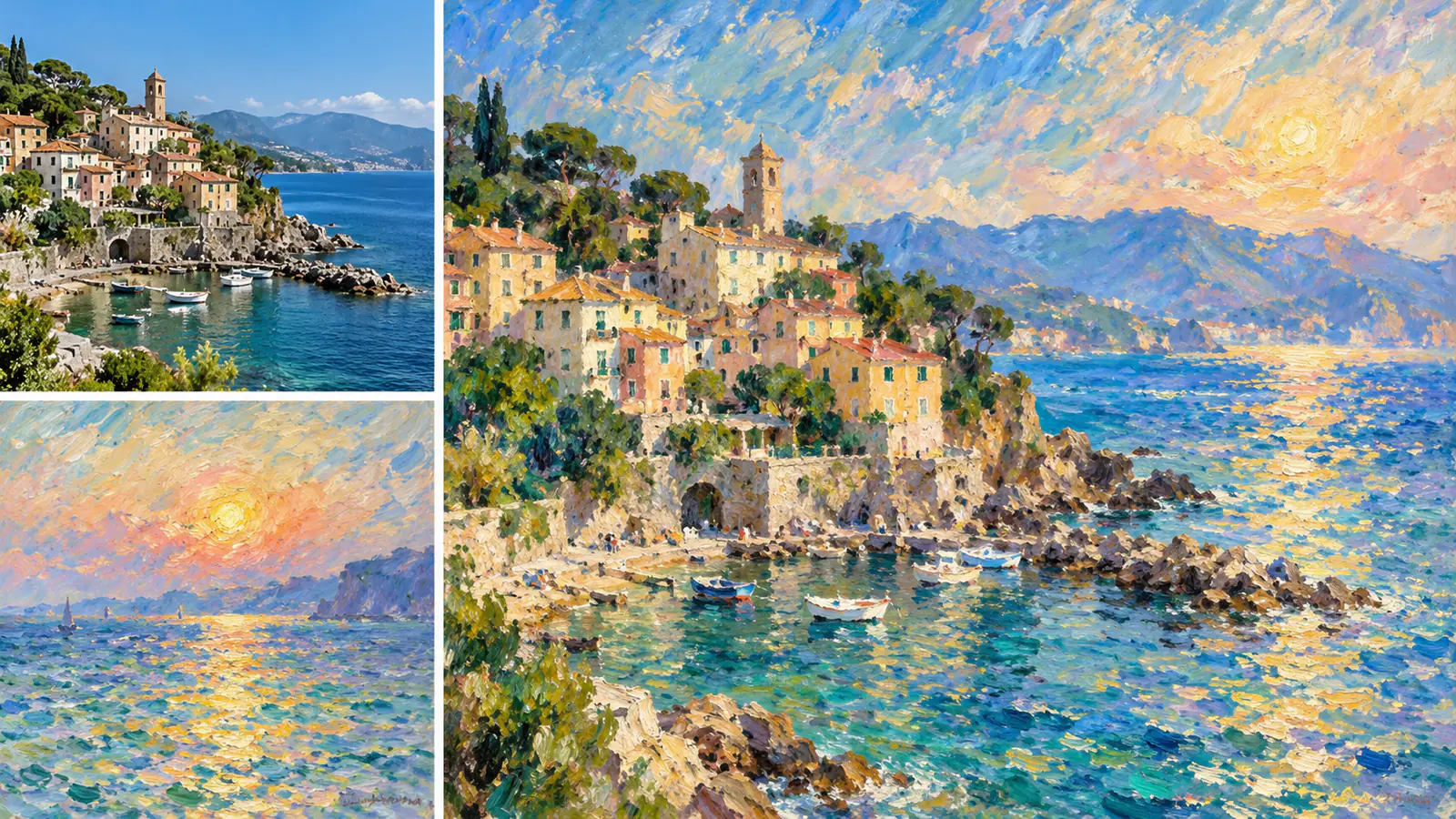
Keep the village, harbor curve, and rooftops from a travel photo. Use a second image for the colors and brushwork of a painting. A prompt can name exactly what to borrow, such as warm peach highlights, loose strokes on the water, and blue shadows on the buildings. If the village has a distinctive tower, ask to keep it in the same place. The tower becomes an easy point of comparison when you review the image.

A coastal village photo and impressionist seascape beside a painted version of the village and harbor

Bring a character, a place, and a mood together

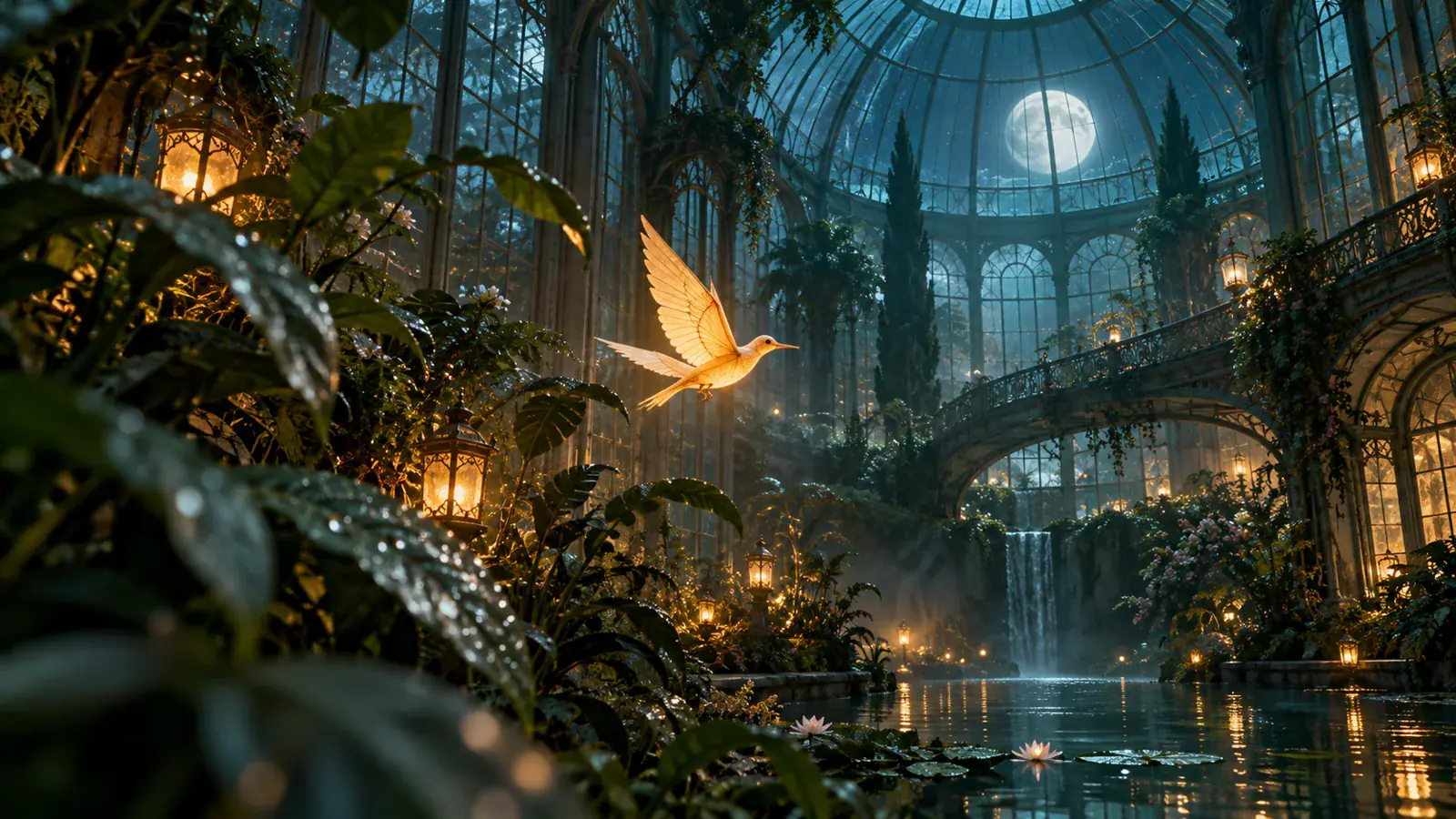
For a story image, try a bird for the subject, a glass conservatory for the setting, and a moonlit garden for the color and lighting. Ask for the bird to fly above the water and let the glass roof remain visible behind it. If the lighting reference contains other objects, name only the colors or light you want to borrow. Tell the combiner where the viewer should look first, especially when the setting has a lot of detail. Browse MiniMax H3 Image prompts

A glowing bird above dark water inside a moonlit glass conservatory

How to Check Your Composite

Check recognizable details

Open the result at full size and compare the details you named in the brief. On a product, look at the silhouette, hardware, and label. For a portrait, check whether the face, expression, and pose work for the scene. If a small feature matters, choose a reference in which it is clearly visible and call it out by name.

Check scale and contact

Use something familiar in the scene to judge size, such as a chair beside a person or a table under a product. Look where feet meet the floor and where objects meet a surface. If the scale feels off, give the model a relationship it can picture, such as a mug shorter than the books beside it.

Follow the light across the frame

Compare the bright side of the subject with the windows, lamps, or sun in the background. Then look at the shadow under the subject. For a softer scene, ask for broad window light from one side and a faint contact shadow. A specific lighting instruction gives you a clearer change to review on the next attempt.

Check the frame at its final size

View the image at the size it will appear in a post, slide, or product listing. Check whether the main subject still reads and whether there is space for any planned text. If a tall portrait looks cramped after a wide crop, ask for a wider shot with more room beside the person.

AI Image Combiner FAQ

This workspace takes 2 to 16 reference images and creates one new picture per generation. For a simple subject and background, start with two. Add more if you need a separate prop, pose, or style.

Studio accepts JPEG, PNG, WebP, and AVIF images up to 10 MB each and can convert HEIC and HEIF photos on selection. Use images between 128 and 8192 pixels on each side for MiniMax H3 Image Edit. If a file is too large, resize or export a smaller copy before adding it again.

Bring Your References Into One Picture

Choose the images that show your subject and setting, then tell MiniMax H3 Image Edit how they belong together.