


Loading...

Seedream 5.5 Image Generator

Mode
0/5000
Aspect Ratio
Resolution
Output format
Advanced Settings (Optional)
Background
Required credits
4

Sample Images

Editing concept triptych of the same woman with different backgrounds, jacket colors and a scarf

Seedream 5.5 Image Generator

Seedream 5.5 is ByteDance's model for generating new images and editing existing ones. Start from a prompt or add up to 10 reference images, then choose the frame and output size for your project. Use transparent PNG for artwork you want to place on another background. The examples below illustrate three ways to brief a product scene, an editorial image, or a focused color edit.

Concept artwork of an amber perfume bottle with lilac fabric and pale stone

How to Generate Images with Seedream 5.5

Decide what the viewer should notice first, then choose the prompt, references, and crop to support it.

  1. Choose Text to Image or Image to Image

    Choose Text to Image when the picture starts with an idea. Describe the main subject and its setting before adding style. If a picture already has the pose or composition you need, choose Image to Image and upload it as a reference. An image with clear edges and even lighting is easier to describe precisely.

  2. Describe what should change

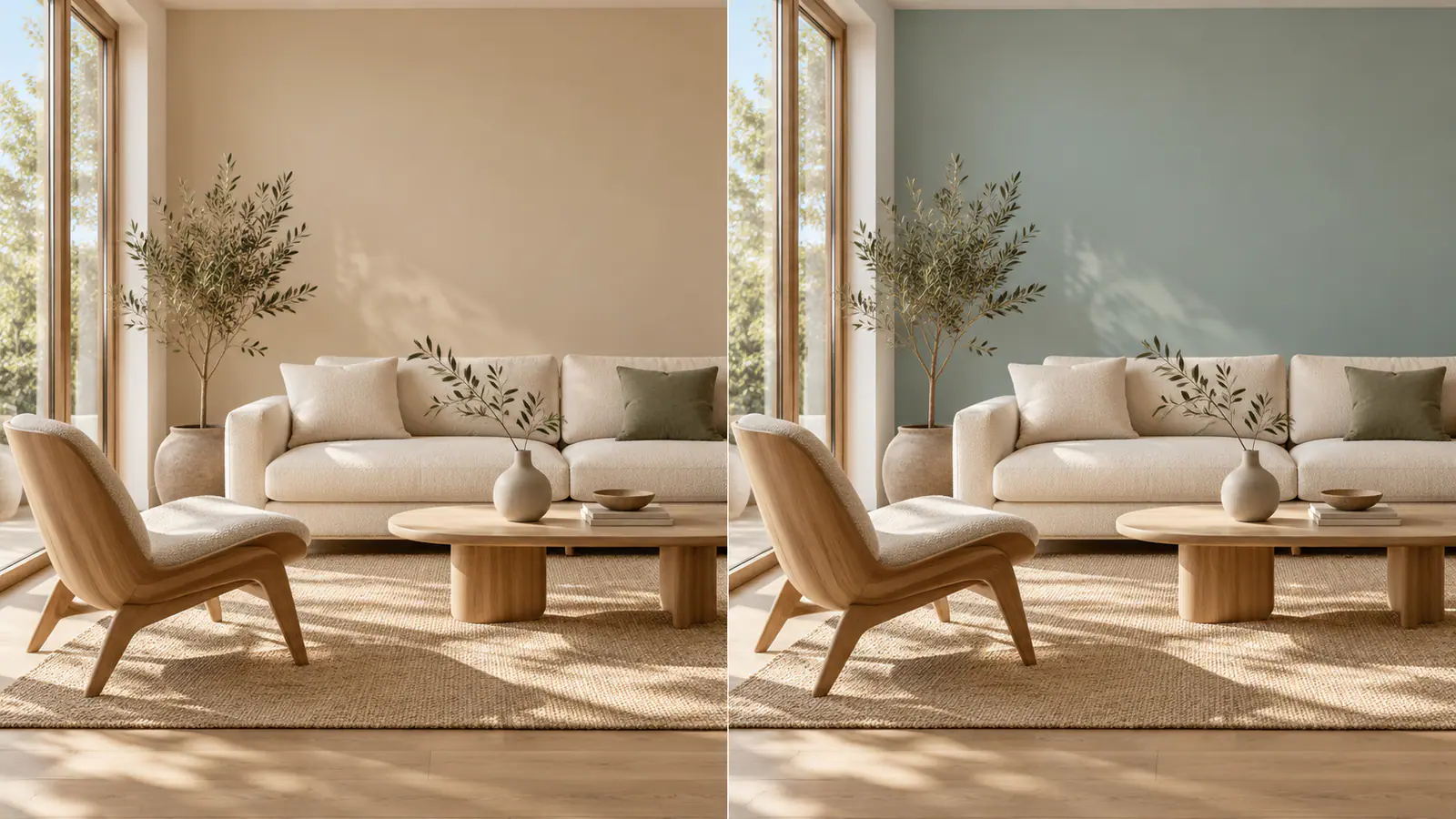
    Write a short instruction with concrete visual details. For a new image, name the subject, camera angle, and light. For an edit, describe the change and the details that should stay fixed. For example, ask for a cool blue wall behind the chair while keeping the window trim, floor, and camera position.

  3. Set the frame and generate

    Pick a shape that matches the space the image needs to fill. For a wide header, reserve room on one side. For a portrait, specify how much headroom to leave. Choose 1K, 1.5K, or 2K, check the displayed credits, then select Generate.

Seedream 5.5 Image and Editing Prompt Examples

These concept illustrations show three different prompt decisions: where to place a product, how to tell a story in a single image, and which part of an existing scene to change.

Place a product in a believable setting

Start with the object and the reason for moving it into a new scene. In this lamp concept, the bedroom makes the product feel usable at night. For a new picture, describe the bronze base, the shade, the height of the bedside table, and which side the light falls on. If you have a product photo, specify the shape and finish to retain while changing the room. When you review the result, look for a contact shadow beneath the base and reflections that match the room. These details matter more than extra furniture if the image needs to make the lamp the focus.

Create a Product Image
Bronze table lamp in a softly lit bedroom product concept

Give an article one clear visual idea

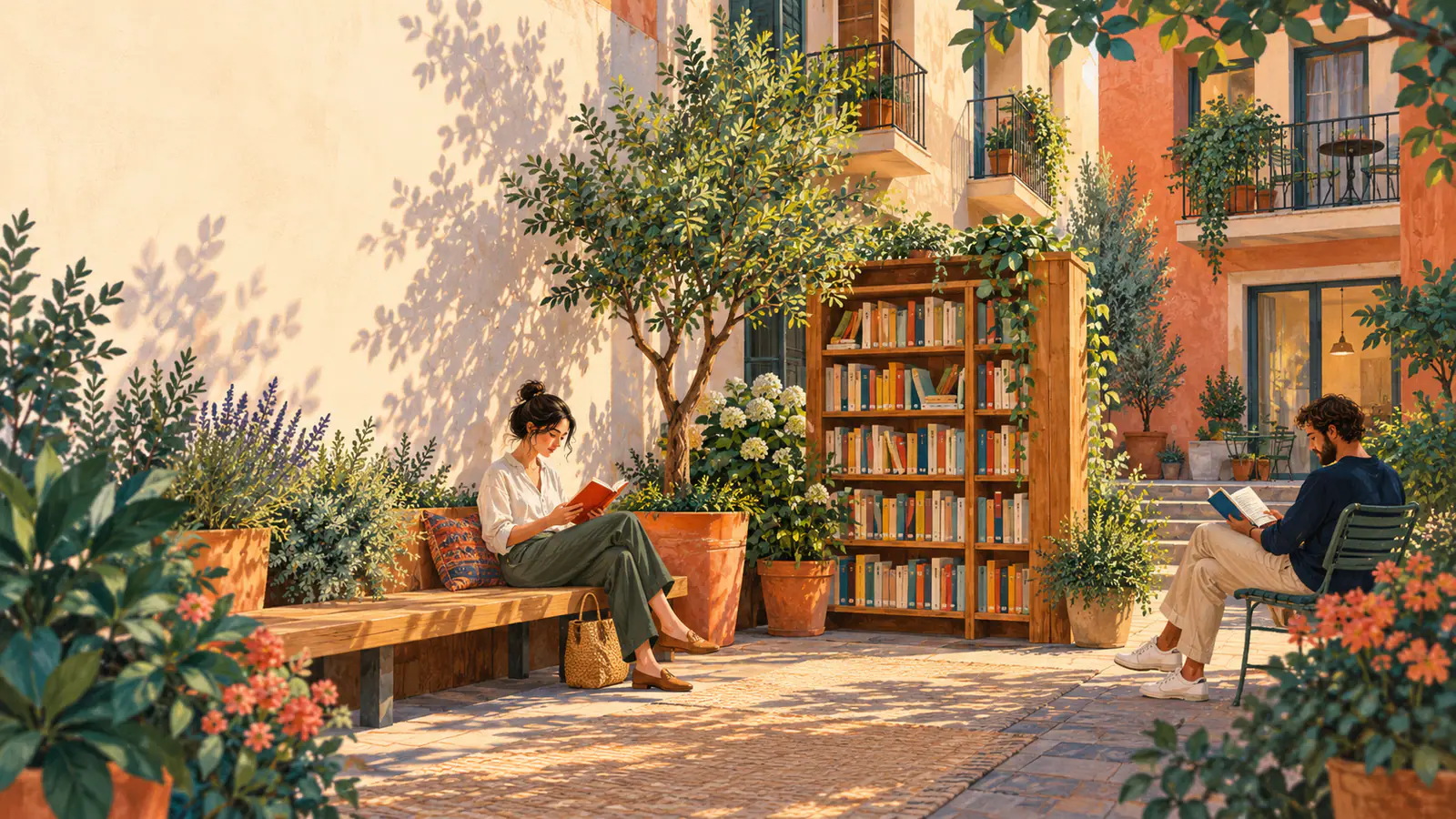
An editorial image should make a point readers can see without reading the caption. For an article about shared reading spaces, place a courtyard bookshelf between apartment buildings and show neighbors browsing and reading around it. The bookshelf gives the scene a center, and the people explain why it matters. Ask for an angle that makes the arrangement easy to understand. If a headline will sit on top, name the side of the frame that should stay quiet and add the final type in your layout. Check the composition at thumbnail size; people, objects, and headline space should still read clearly.

Create an Editorial Image
Illustration of neighbors reading beside a courtyard bookshelf

Change one part of a reference image

Use a narrow edit when the original composition already works. For the illustrated room, specify the wall behind the chair as the edit area and ask for a sage-blue finish. Keep the furniture, floor, and window trim as reference points. Describe how the light should fall on the new surface so the color still makes sense in the room. A later revision can adjust the color temperature on its own. Keep the original nearby so you can compare shadows, edges, and furniture placement side by side. That comparison reveals unintended changes that are easy to miss when you see the edit alone.

Edit a Reference Image
Room color concept showing the same furniture with beige and sage-blue walls

What to Decide Before You Generate

Set the constraints that will help you evaluate an image later: the reference's purpose, the crop, and the details to check.

Give the reference one job

Say what the reference contributes: shape, pose, composition, or a starting scene. If a lamp photo defines the object, say whether the surface underneath and the original shadow should carry over. This keeps your instructions readable and gives you a clear point of comparison.

Choose the crop before the fine details

A square card leaves less room for supporting props than a wide banner. For a square crop, give the subject a clear silhouette and some space at the edges. In a wide frame, specify where the subject sits and what the extra space is for.

Choose a file format for the next step

Choose transparent PNG for a sticker, product cutout, or graphic you plan to place over another background. JPEG suits opaque photographs. Check the edge of a transparent image against a light and a dark background before using it in a layout.

Define how you will check the output

Pick two or three checks that matter for the job. In a product image, compare the finish and outline with the original. In a layout with text, check the spelling at its final size. For a targeted edit, check nearby details as well as the changed area.

Seedream 5.5 FAQ

Check reference limits, output options, and how to set up a generation.

Seedream 5.5 is an image generation and editing model from ByteDance. ByteDance introduced it on November 9, 2026, with demonstrations of repeated edits, realistic image detail, and native transparency. Choose Text to Image to create a scene from a prompt, or Image to Image to edit a photo or build a scene around references.

The workbench shows the credit cost before you generate. The quote updates when you change the output resolution or add reference images. For a quick composition check, start at 1K and increase the resolution when the brief is ready.

Create Your Next Image with Seedream 5.5

Start with a subject and a frame in mind. Add references for an edit, or describe a new scene from scratch.