
MiniMax H3 Image Generator

MiniMax H3 Image is an open-weight model for native 4K image creation and editing. It follows complex prompts, renders lifelike textures, and blends up to 16 reference images. MiniMax reports generating a 4096 × 4096 image in under 10 seconds.

MiniMax H3 Image Generator

Mode
0/5000
Aspect Ratio
Resolution
Images
Output format
Required credits
4

Sample Images

Concept product photograph of a brass lamp on a stone bedside table in warm window light.

Image ideas for your next creative brief

Explore four directions for a MiniMax H3 Image prompt. Each scene shows a different way to specify a subject, setting, and visual goal.
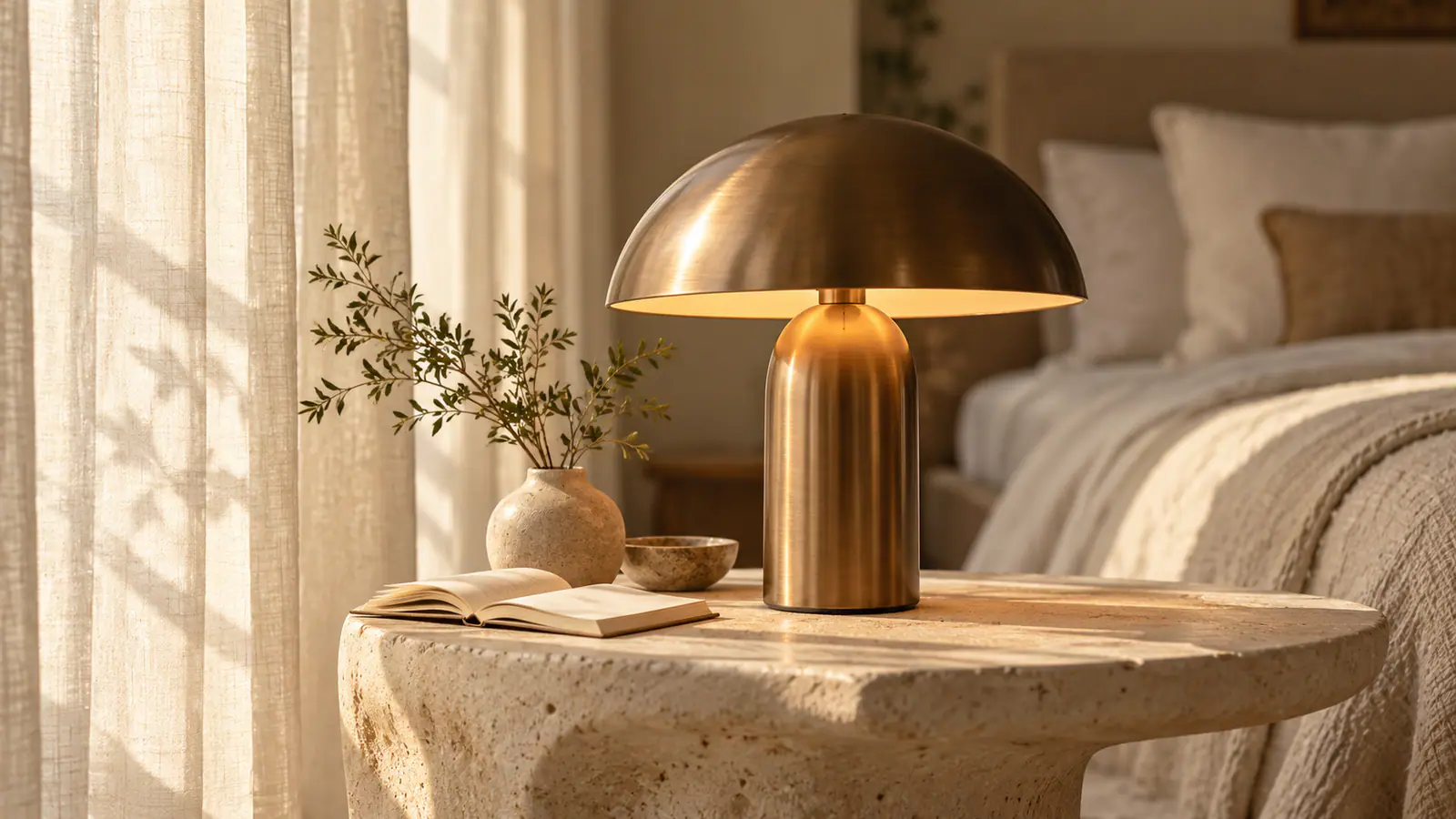
Concept product photograph of a brass lamp on a stone bedside table in warm window light.

Product photography

Prompt idea: a brass bedside lamp on pale stone, soft window light, warm linen, and an uncluttered bedroom setting.
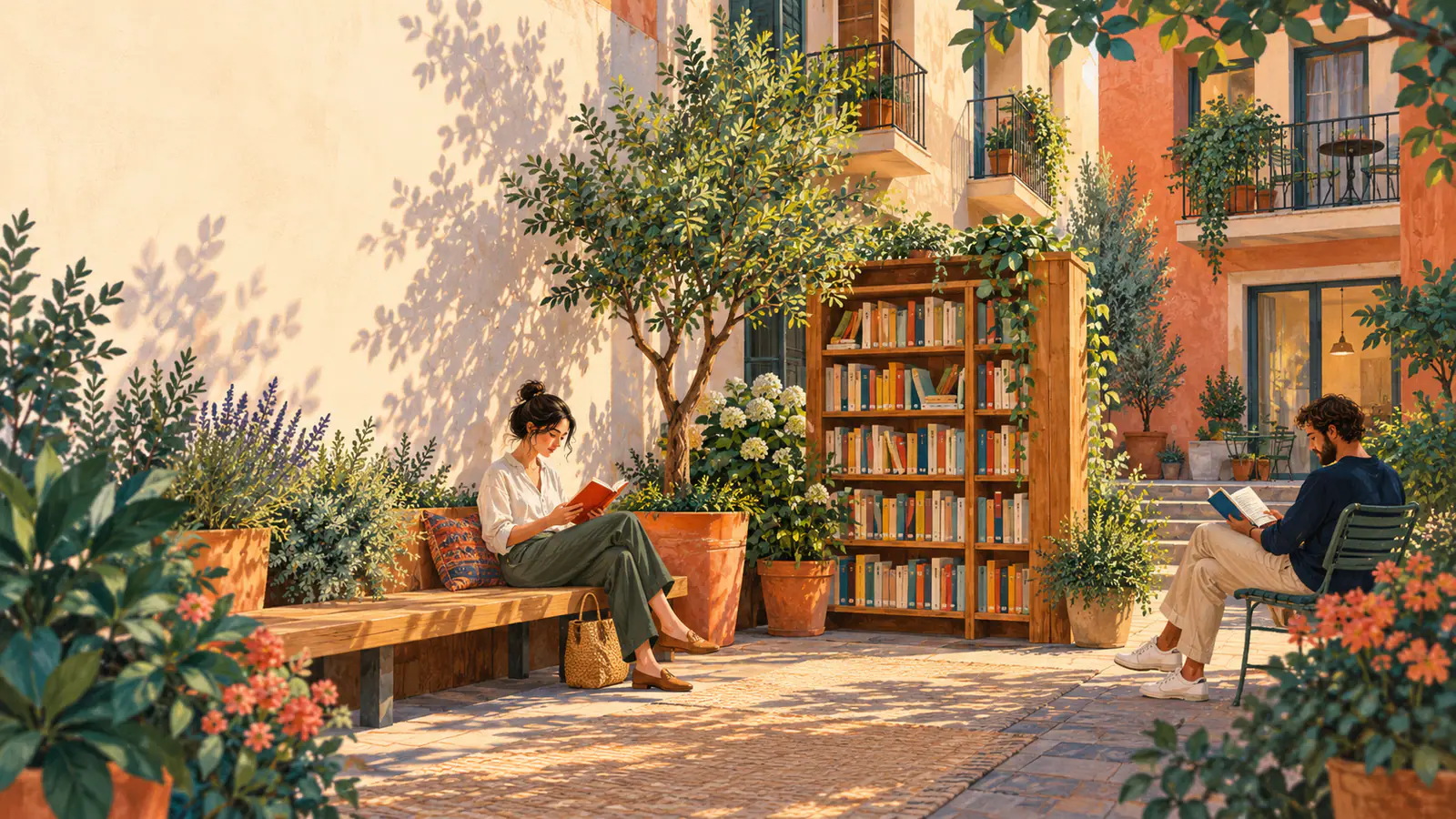
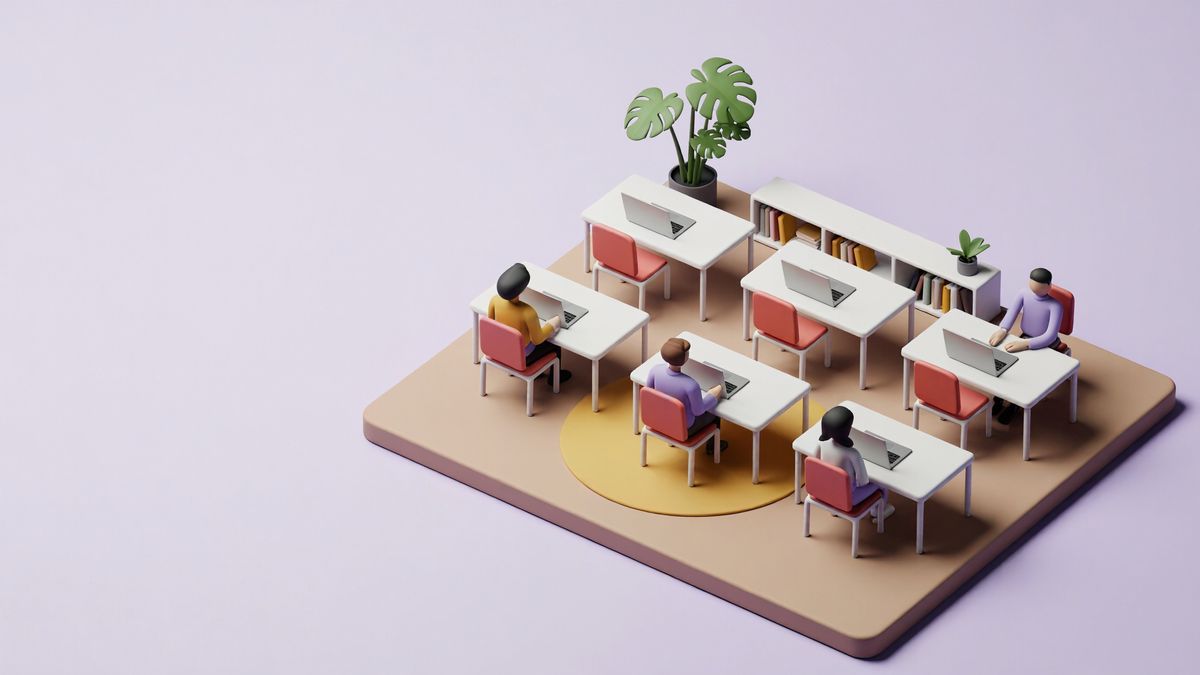
Concept illustration of two readers in a sunlit courtyard with a bookshelf and plants.

Editorial illustration

Prompt idea: two people reading in a sunlit courtyard, leafy shadows, warm plaster walls, and a painterly finish.
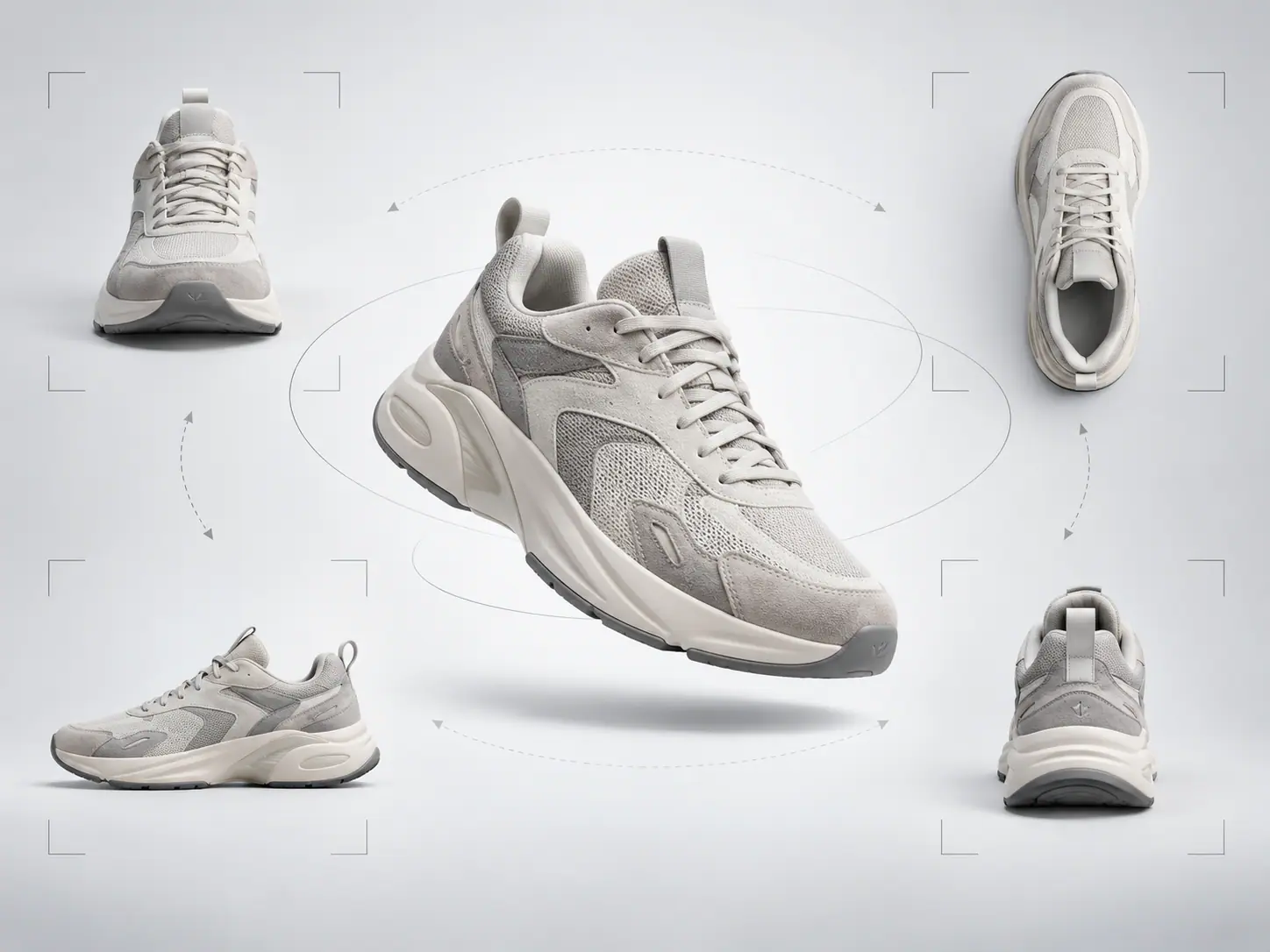
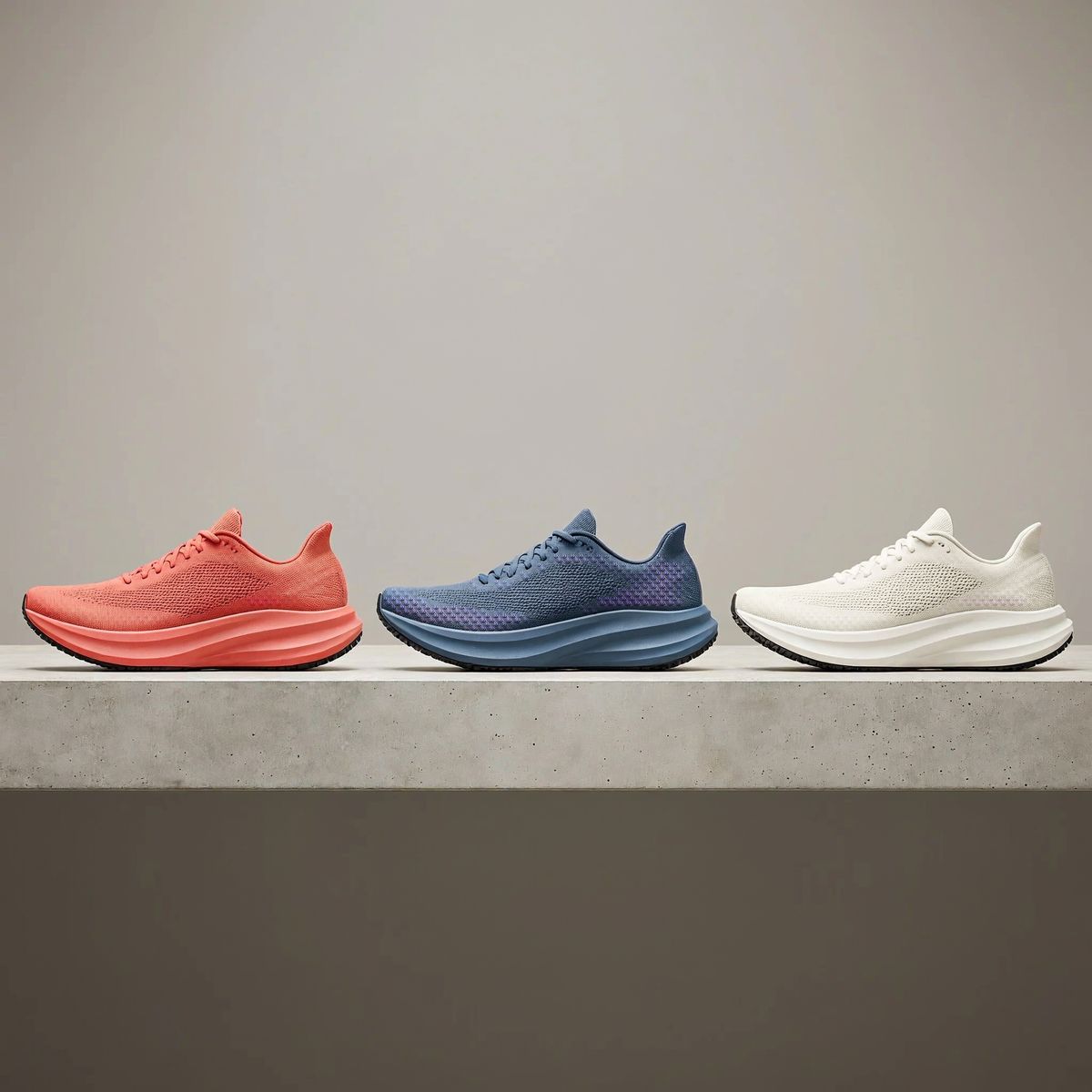
Concept multi-angle layout of a white sneaker shown from front, side, top, rear, and three-quarter views.

Product angle studies

Prompt idea: one white sneaker in a coordinated layout of front, side, rear, top, and three-quarter views on a neutral background.
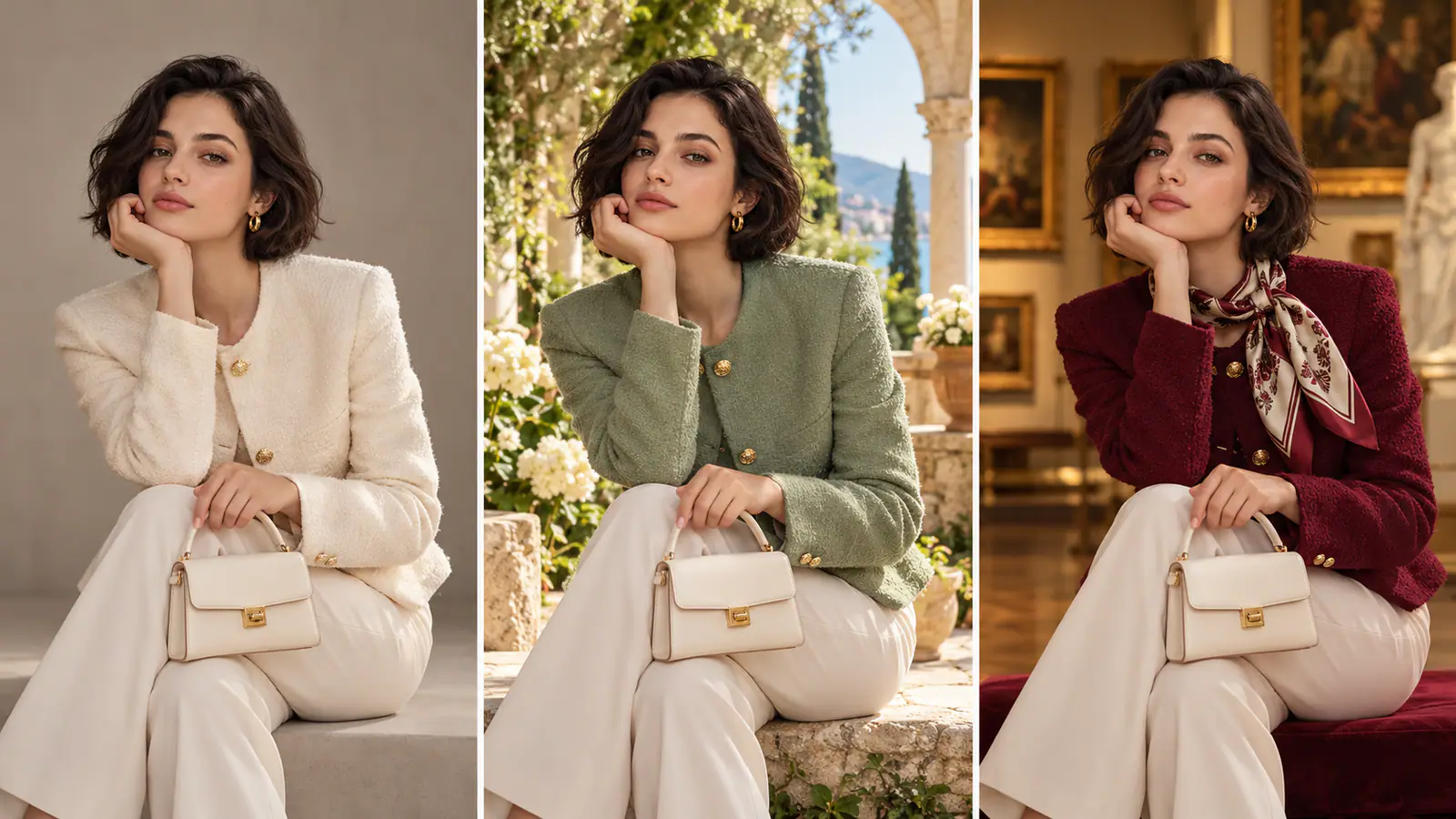
Concept portrait variations with the same seated woman in cream, green, and burgundy outfits and different settings.

Portrait art direction

Prompt idea: keep the seated pose and cream handbag, then explore a green jacket in a garden or burgundy tailoring in a gallery.
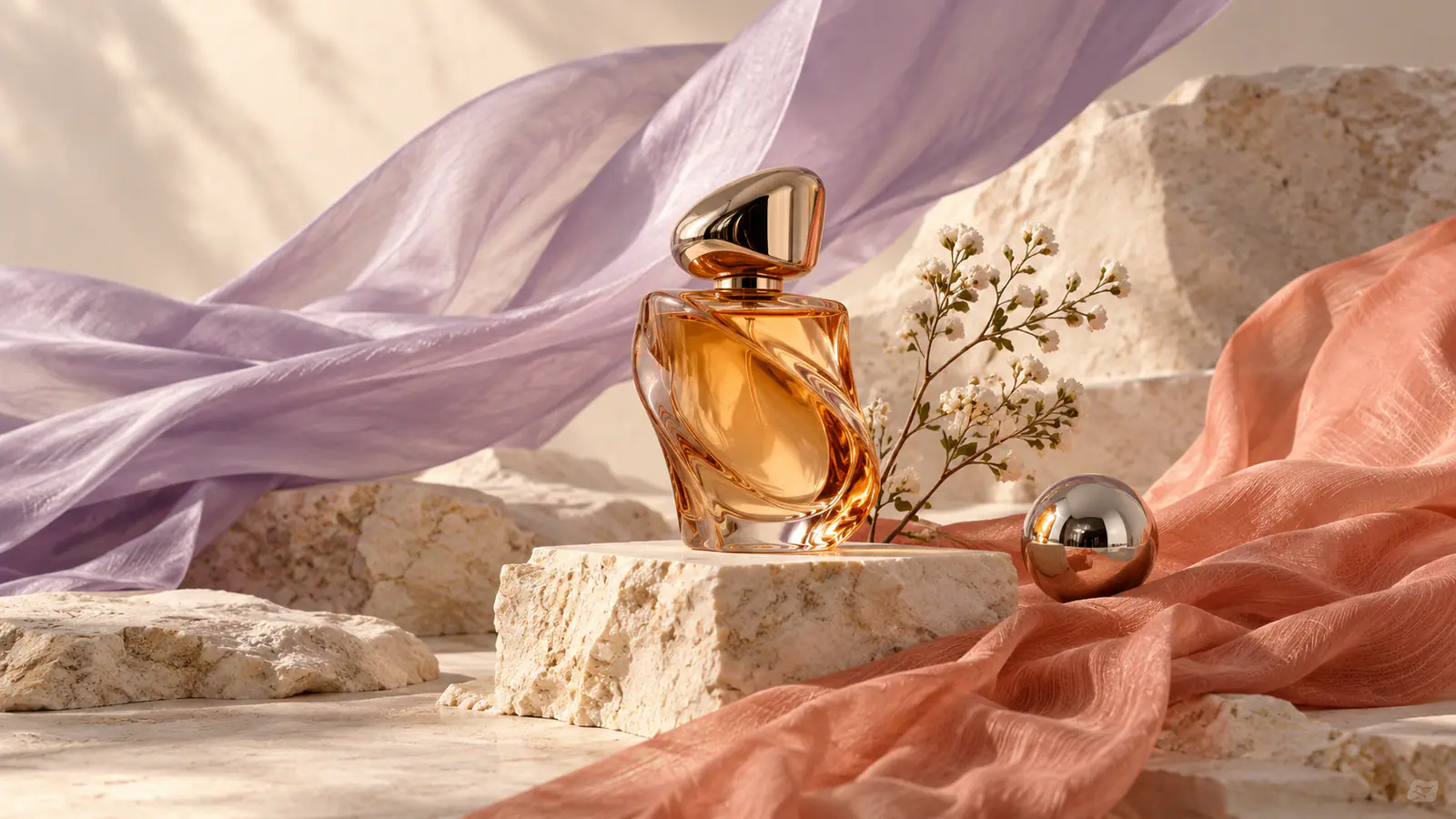
What you can create with MiniMax H3 Image

Build a new scene from a prompt, combine details from several references, or describe a focused edit to an existing image.

Build a composition from a detailed Text to Image prompt

Describe where each element belongs and how it should interact with the rest of the scene. For a perfume campaign, place an amber bottle in front of a fold of translucent fabric, light it from the upper left, and leave space on the right for a headline. A brief like this gives H3 Image clear instructions for subject placement, depth, lighting, and layout.

Text to Image
Concept product photograph of an amber perfume bottle on pale stone with flowing lavender and peach fabric.

Image to Image editing with a clear change request

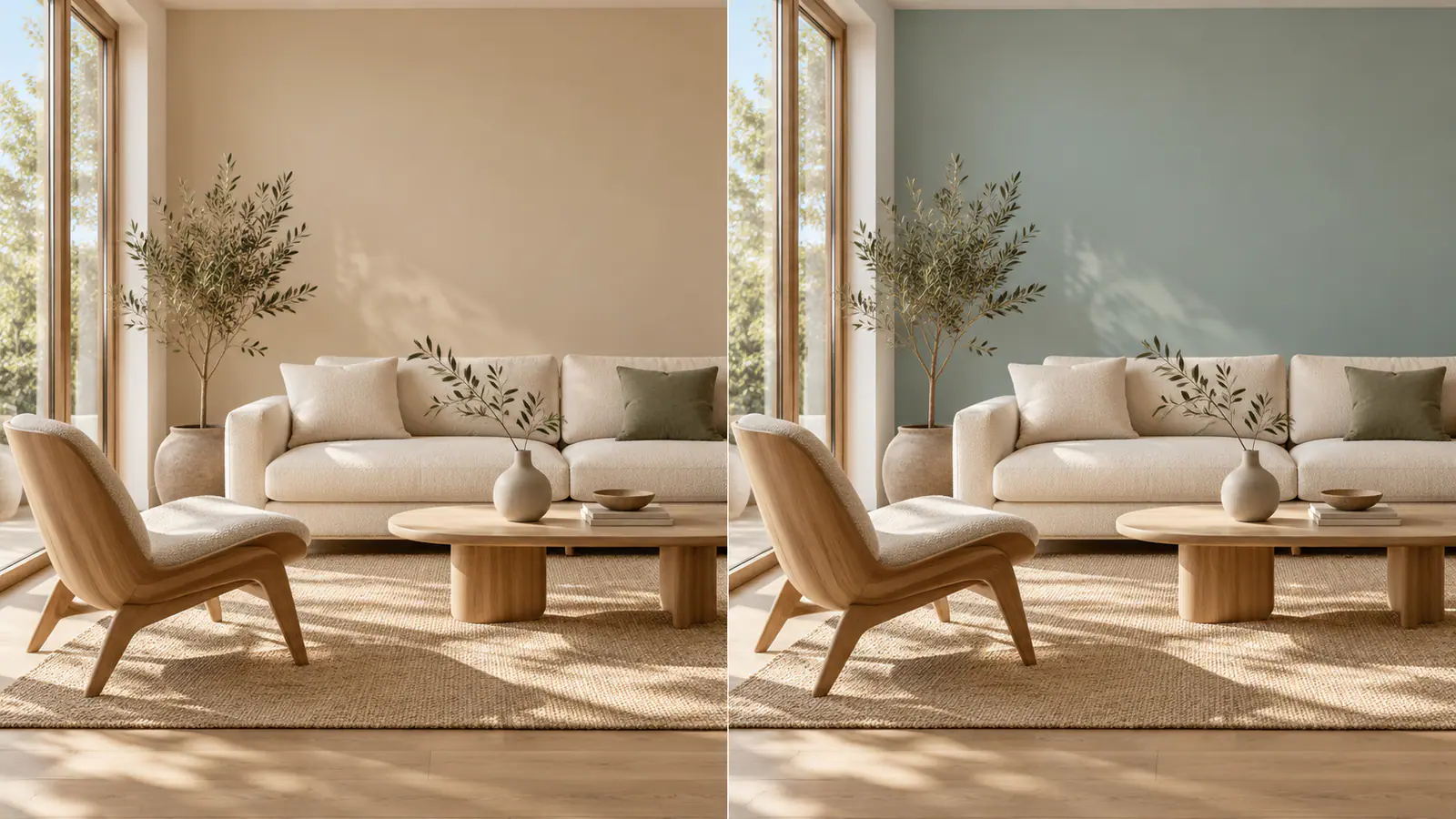
An edit prompt should explain both the change and the parts to preserve. For an interior concept, ask to repaint only the back wall in muted blue while keeping the sofa, wooden furniture, plants, viewpoint, and window light. For a portrait, identify the outfit or setting to replace and the pose to keep. This is more useful than asking for a general improvement. Open the Image to Image workspace when your starting point is an existing photo or illustration rather than a blank scene.

Open Image to Image
Concept comparison of the same furnished living room with a beige wall on the left and a muted blue wall on the right.

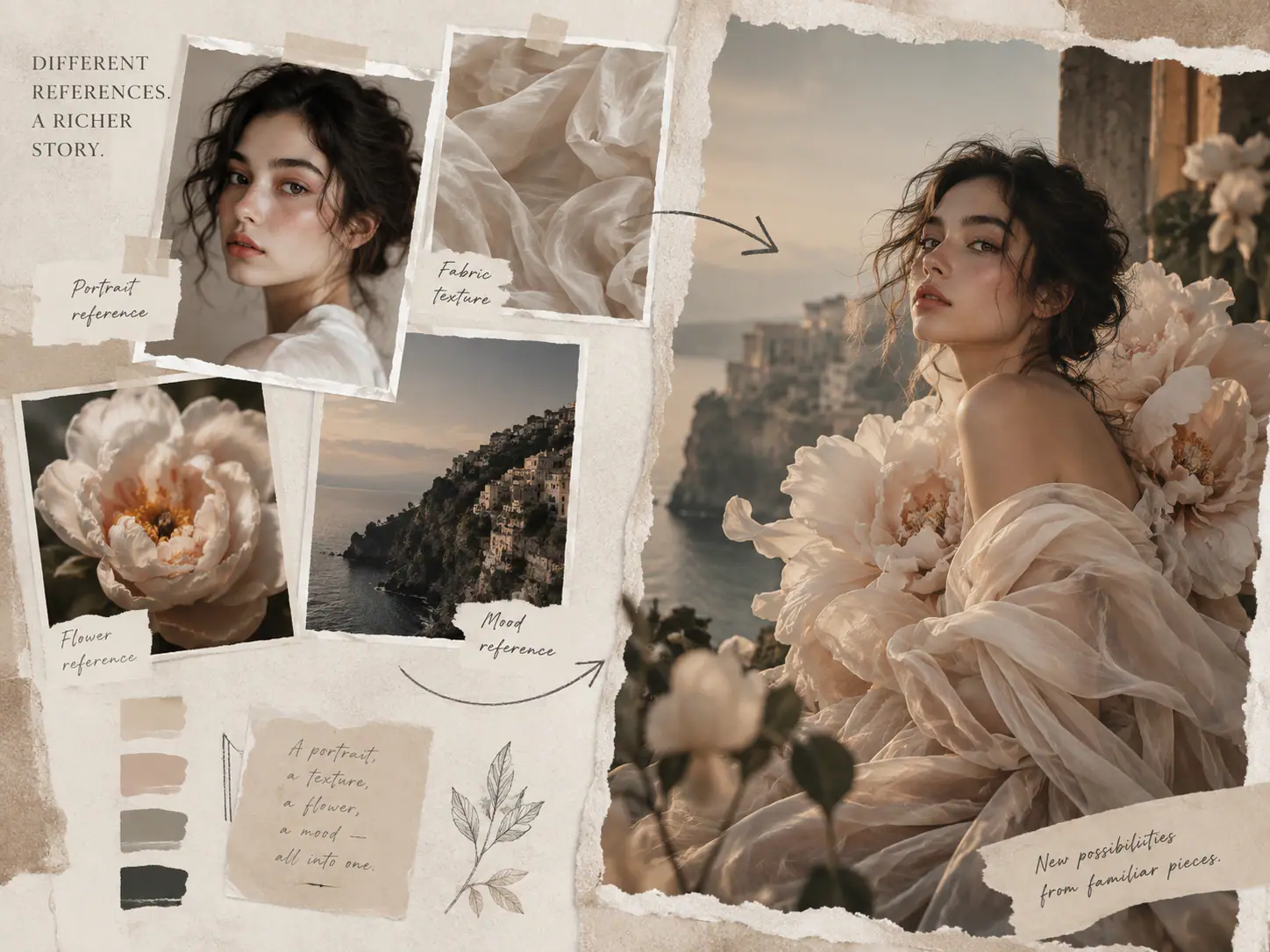
Combine subjects, materials, and settings from different images

Give each image a distinct role in the same composition. In the fashion concept shown here, the portrait guides the subject, the fabric guides the clothing, the flower sets the accent color, and the coastal mood board guides the setting. Describe which details to carry over from each reference and how they should fit together.

Open Image to Image
Concept workflow combining portrait, fabric, flower, and coastal mood references into a floral fashion portrait.

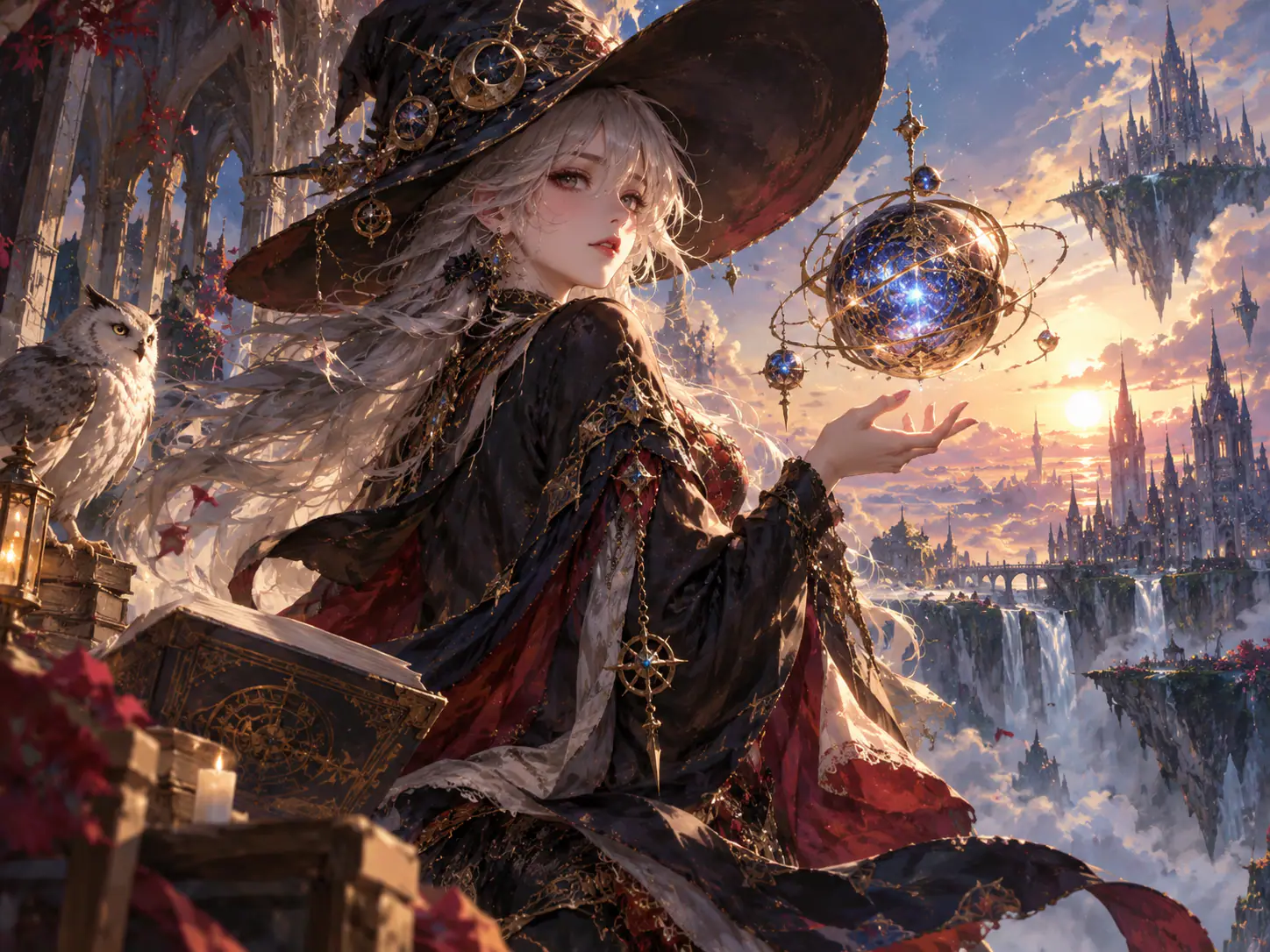
Give each material a distinct look

Describe how materials respond to the same light. In the fantasy scene, a glowing orb can cast a soft glow on woven fabric and sharper highlights on engraved metal. A brief like this gives H3 Image specific cues for texture, shadows, and reflections.

Open the image generator
Concept fantasy illustration of a silver-haired mage holding an intricate glowing orb, with an owl and floating castles.

How to prepare your MiniMax H3 Image prompt

Use the workspace to turn a rough idea into a concrete image brief in three steps.

  1. Describe the image you need

    Write the subject, action, and setting in plain language. Add the visual style, light direction, and material details that matter to the finished image. If you are editing an existing image, switch to Image to Image and state exactly what should change and what should stay. Put the most important requirements first so the brief has a clear priority.

  2. Choose the frame and output settings

    Match the aspect ratio to the final placement: square for a product tile, portrait for a cover, or landscape for a banner. Choose a 1K, 2K, or 4K size option and a JPEG, PNG, or WebP format. Think about the crop and any space needed for a heading before choosing a larger image size.

  3. Review the brief before generating

    Read the prompt as a checklist: subject, composition, lighting, style, and any details to preserve. Remove conflicting directions and decide which requirement matters most. For reference-based work, identify what each image contributes. The concept gallery can help you find a direction; adapt the wording to your own subject and intended use, then keep the brief ready in the workspace.

What sets MiniMax H3 Image apart

MiniMax designed H3 Image to render large images quickly while following detailed briefs and combining visual references.

MiniMax H3 Image 4K generation

H3 Image renders a full 4K image directly, without a separate upscale step. That gives a product visual or wide illustration enough detail to inspect textures and crop individual areas.

Blend up to 16 reference images

MiniMax’s image editing model can draw from several sources in one result. Use a model photo for the person, a garment photo for the outfit, and a location photo for the background to plan a single fashion image.

Complex prompts and spatial understanding

Specify object placement, camera perspective, lighting, and reflections within the same brief. MiniMax demonstrates how H3 Image can turn a flat map into a first-person game scene or lay out the parts and labels in an exploded product diagram.

Render lifelike textures and natural light

H3 Image focuses on subtle details such as skin texture, strands of fur, fabric weave, and highlights on worn metal. Those details help make portraits, clothing, and product surfaces look more natural.

Already have an image?

Start with a photo or illustration and write a prompt that identifies what to change and what to keep.

MiniMax H3 Image Editor

MiniMax H3 Image FAQ

Find out how credits work, how to generate at 4K, and how to use reference images.

You can explore the Studio for free. Generating an image uses credits, and the Generate button shows the cost before you submit.

Choose 4K in Studio and set the aspect ratio. A square image is 4096 × 4096 pixels. A 16:9 image is 5472 × 3072 pixels.

MiniMax H3 Image Prompt Examples

Give your next image a clear direction

Start with a Text to Image brief, or bring an existing picture to the Image to Image workspace. Describe the subject, choose the frame, and make each creative decision explicit.