
Loading...

Nano Banana 2.1

Mode
0/10000
Aspect Ratio
Resolution
Images
Required credits
3

Sample Images

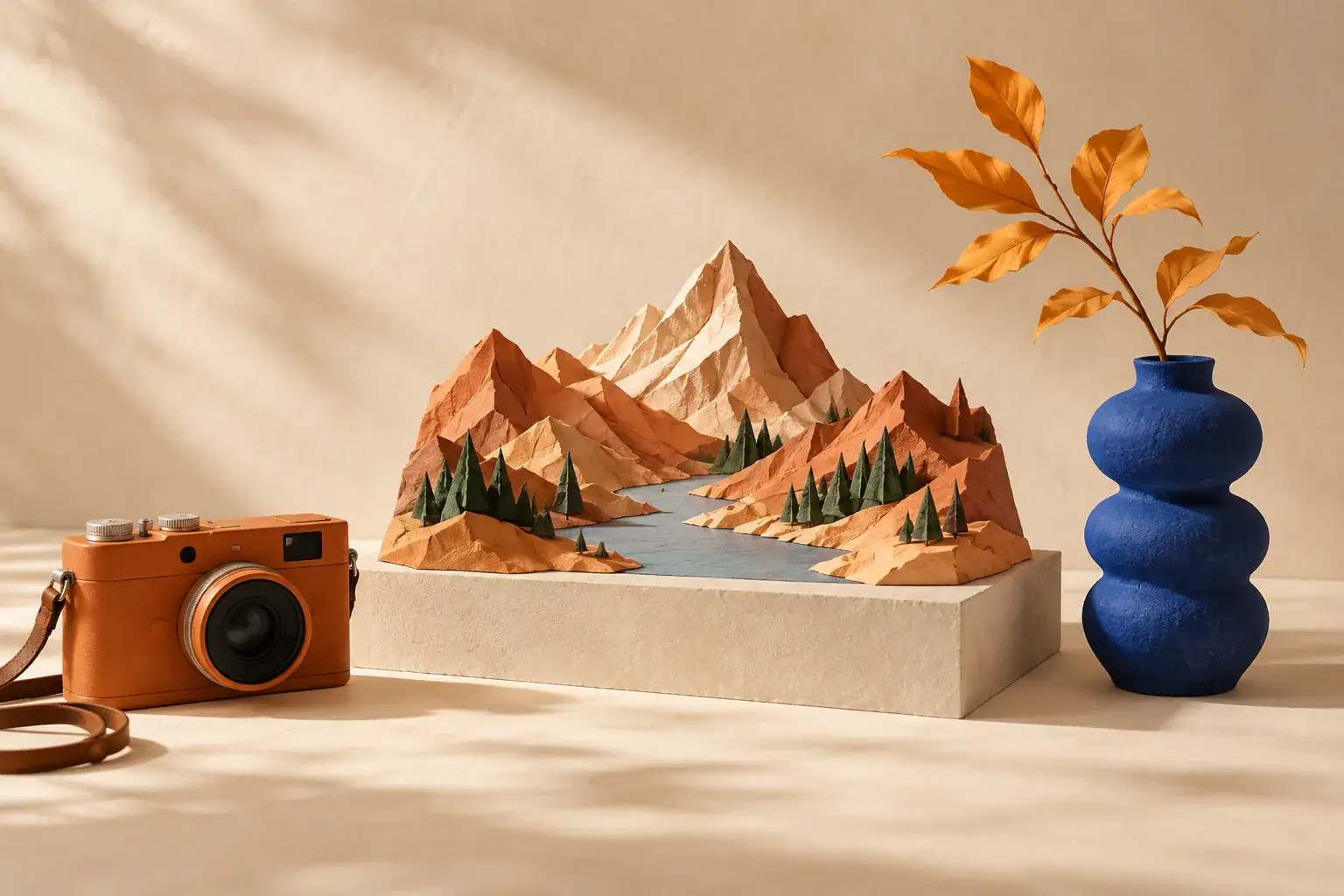
Creative still life with a sculptural paper landscape, an orange camera and a blue vase.

Nano Banana 2.1 Image Generator

Start with a written idea or give an existing photo a new direction. In AI H3 Image Studio, use Nano Banana 2.1 to plan a product scene, explore a character portrait or design a poster. Start with the subject you care about, then describe the scene you want or the specific details you want to change.

Creative still life with a sculptural paper landscape, an orange camera and a blue vase.

How to use Nano Banana 2.1

Choose the input that matches your task. A new composition starts with text; a recognizable person or object usually benefits from a reference.

  1. Choose Text to Image or Image to Image

    Use Text to Image when you want to invent a scene without an uploaded photo. Choose Image to Image when your starting point is a person, product or existing composition. Add clear reference images, then describe their roles: image 1 supplies the product, for example, while image 2 guides the setting. Remove unrelated references so the brief stays focused.

  2. Describe the result and choose your settings

    Write the subject, setting, light and composition you want. For an edit, separate what should change from what should stay. Choose an aspect ratio for the destination, select 1K, 2K or 4K, and review the output count and the required credits. A square product card and a wide website banner need different framing, even when they feature the same subject.

  3. Generate, inspect and refine

    Sign in with enough credits and generate your image. Review faces, product details and any lettering before downloading your preferred version. To continue editing, add that result as a reference and write the next specific change. Keep the strongest version as your starting point rather than carrying an unwanted detail through every revision.

Three ways to create with Nano Banana

Different briefs need different anchors: a product reference, a character identity or a short written message. Use the examples below to decide what your prompt should prioritize.

Reference photo editing for product scenes

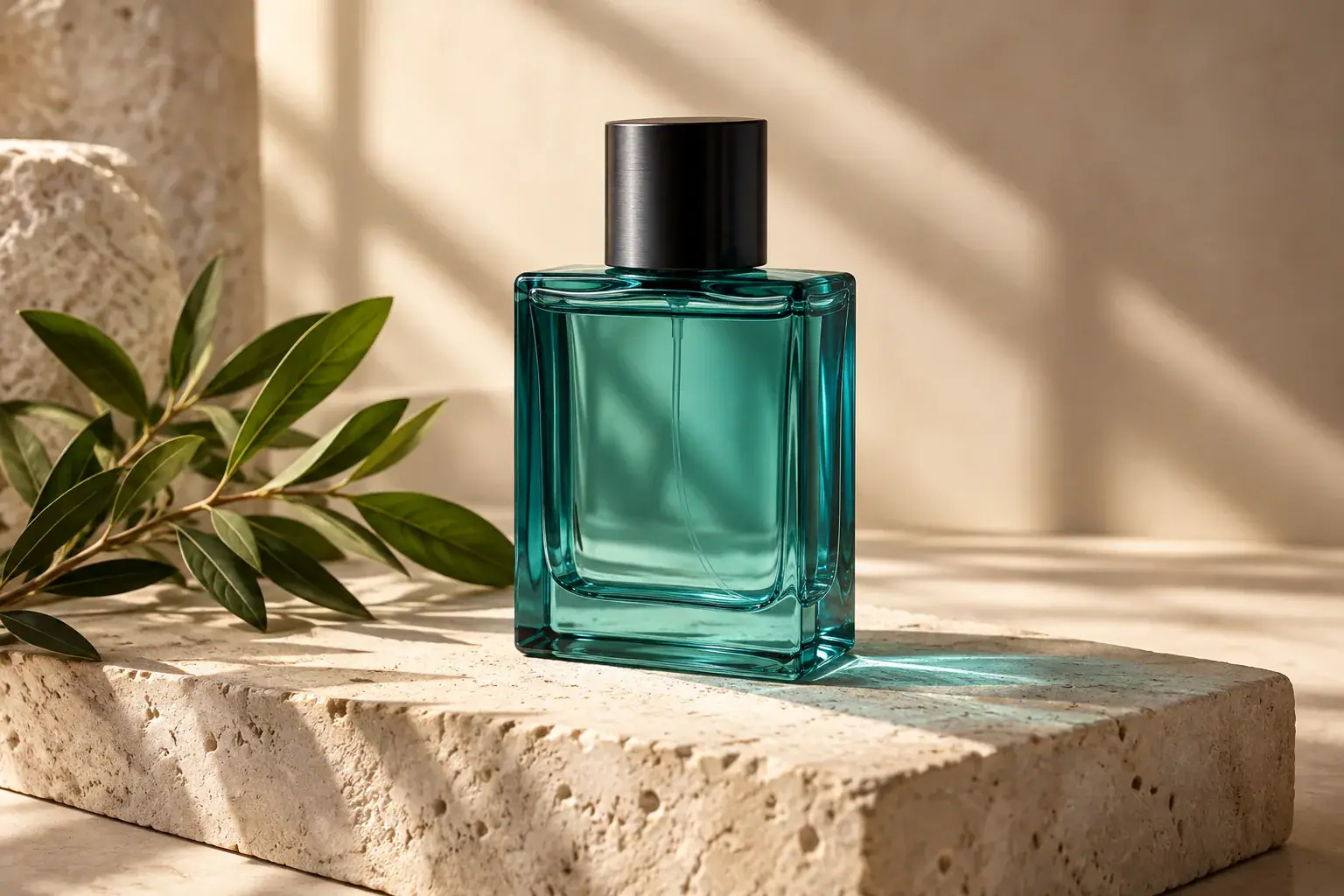
Start with a product photo when the object must remain recognizable. Ask for a new surface, lighting direction or surrounding scene while naming the shape and packaging details to retain. Try: “Place the bottle from image 1 on pale stone beside a leafy branch. Use soft window light and keep the cap, proportions and label.” This is useful for planning a campaign look before arranging a physical shoot. Compare the result with your source, especially around reflective edges and small print.
Create a Nano Banana image
A teal perfume bottle arranged on pale stone beside leaves in soft window light.

Character consistency with a clear reference

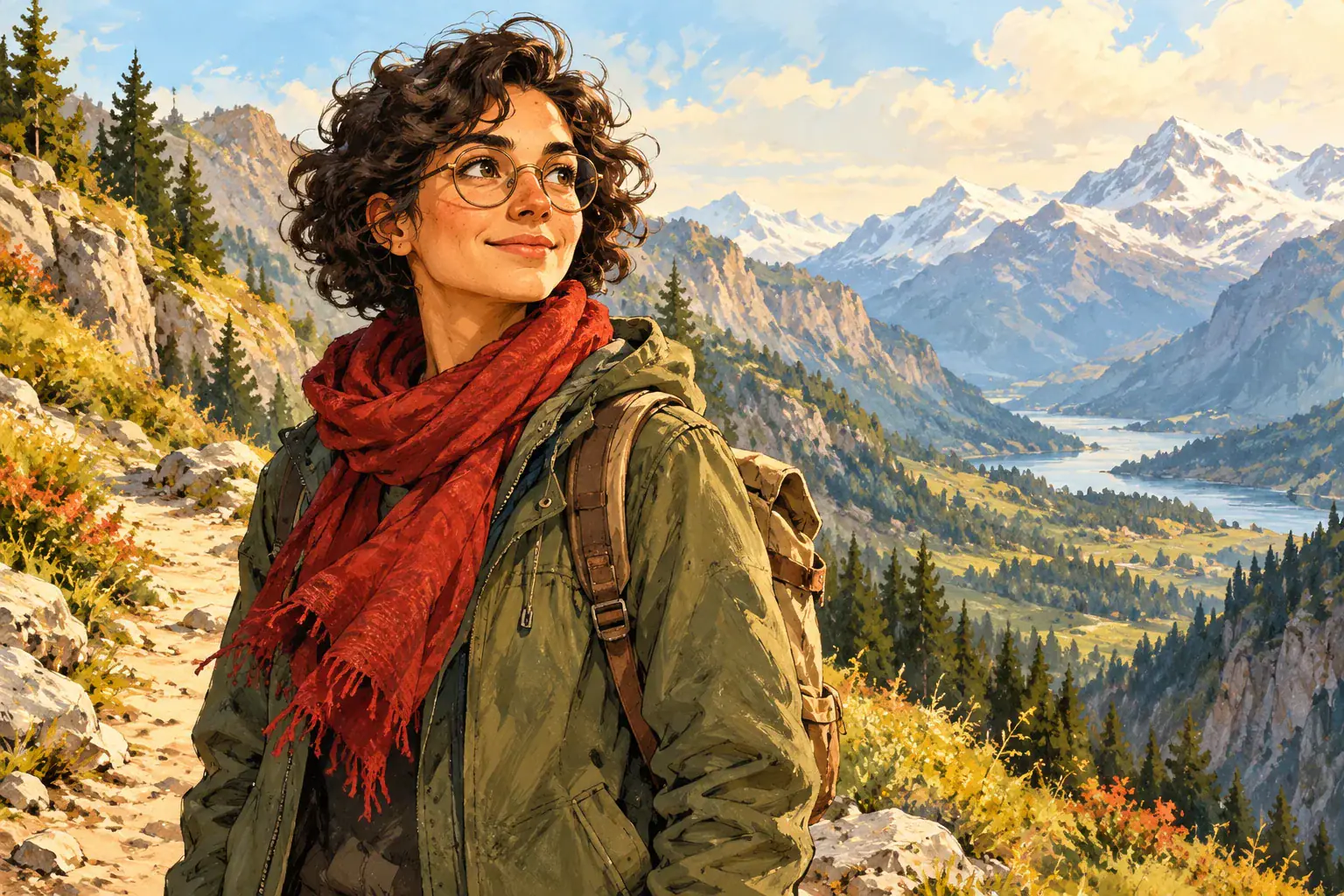
Give a recurring character a visual anchor before changing the scene. A clear face, distinctive hairstyle or recognizable accessory gives you concrete details to name in the prompt. Try: “Keep the explorer’s round glasses, red scarf and short curly hair. Place the character on a mountain trail in a warm illustrated style.” Start with one scene change, then compare the features that make the character recognizable. A useful series needs more than matching colors: check face shape, clothing construction and proportions. Keep your original reference alongside the latest result so each new image has a stable point of comparison.

Create a Nano Banana image
An illustrated adult explorer with round glasses and a red scarf in a mountain landscape.

Text to image for posters and short headlines

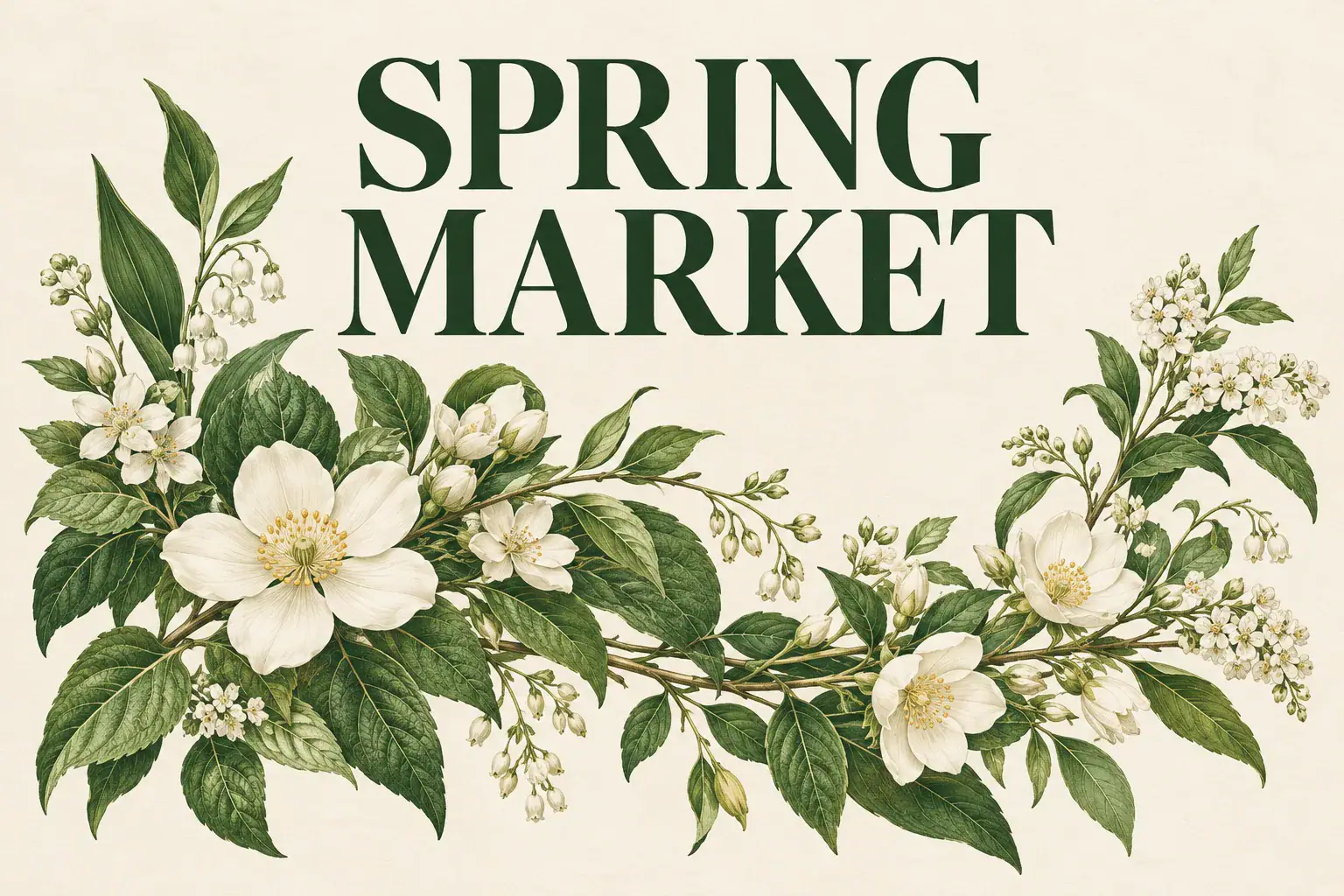
Build a poster around one message rather than a long paragraph. Put the exact headline in quotation marks and describe its placement, the surrounding artwork and the empty space it needs. Try: “Create a botanical poster with the headline SPRING MARKET at the top, green leaves below and a cream background.” Nano Banana 2.1 supports text rendering, making this a useful starting point for a visual concept. Check spelling, line breaks and spacing at full size. If a design needs final dates, prices or extensive legal copy, leave room to add and proofread that information in your design editor.

Create a Nano Banana image
Botanical poster concept with the headline SPRING MARKET and green leaves on cream paper.

Make your Nano Banana prompt easier to follow

A good brief resolves choices before generation. These four checks help you ask for a visible result and judge whether it fits the job.

Give each reference a role

Choose images that contribute something specific. One may define the subject and another the environment. Explain that relationship instead of asking the model to guess which details matter. Avoid combining contradictory angles or styles unless that contrast is intentional.

Describe visible changes

Replace “make it better” with an observable instruction: soften the side light, simplify the background or move the subject away from the edge. Specific changes are easier to compare across versions and help you stop revising once the image meets your brief.

Keep a clear priority

Decide which detail matters most: the person’s appearance, a product shape or the headline. Put that requirement first and keep supporting instructions compatible with it. If a result misses the priority, return to the reference and simplify the request before adding more decorative detail.

Frame for the final placement

Leave room around a subject that will appear in a card or banner. Pick the aspect ratio before generation and inspect the actual crop where the image will be used. A larger resolution adds pixels; it does not fix a crowded composition or an incorrect label.

Six Nano Banana 2.1 prompts to try

Use these sample briefs to specify what should change, what should stay and how you want the final image framed.

  • Make room for a headline

    Use the ceramic mug from image 1. Set it on a light walnut table and place it in the left third. Leave open space on the right for a headline. Preserve the handle shape and blue glaze.
    Product layoutExample prompt
  • Change the setting and keep the lighting

    Move the bicycle from image 1 to a cobblestone courtyard. Keep the frame, wheel angle and decals. Match the warm light on the bicycle to the direction of the sun in the new setting.
    Photo editingExample prompt
  • Use two references with different roles

    Use the shape and finish of the chair in image 1. Take only the cream and rust color palette from image 2. Show the chair from a three-quarter angle against a plain studio wall.
    Multiple referencesExample prompt
  • Carry a character into a new scene

    Keep the explorer’s round glasses, red scarf and curly hair from image 1. Show the explorer reading a folded map beside a window in a mountain cabin. Keep the original illustrated style.
    Character illustrationExample prompt
  • Design an event poster

    Create a portrait poster with the headline “NIGHT GARDEN” at the top. Draw white flowers and navy leaves underneath. Leave a quiet band of cream paper at the bottom for the event details.
    TypographyExample prompt
  • Plan a still life from scratch

    Create a wide still life with an orange camera, folded paper mountains and a cobalt vase. Give each object its own space on a cream backdrop. Use soft side light and a slightly elevated viewpoint.
    Text to ImageExample prompt

Nano Banana image generator questions

Understand the model on this page, the editing inputs and the choices that affect your next image.

Nano Banana 2.1 is a Google image generation and editing model in the Nano Banana family. It is the default model on this page for both Text to Image and Image to Image. You can move from a new prompt to a reference edit with Nano Banana 2.1 selected.

Yes. Choose Image to Image, add a photo and describe what to change and what to keep. To refine a result, add it as the reference for the next edit and give one focused instruction. For example, ask for softer light while keeping the subject, framing and background.

Create your next image with Nano Banana 2.1

Bring one clear idea or a useful reference. Choose Text to Image or Image to Image, describe the scene or change, and make your first version with Nano Banana 2.1.