
Loading...

GPT Image 2.6 Generator

Mode
0/10000
Aspect Ratio
Quality
Images
Output format
Advanced Settings (Optional)
Background
Required credits
18

Sample Images

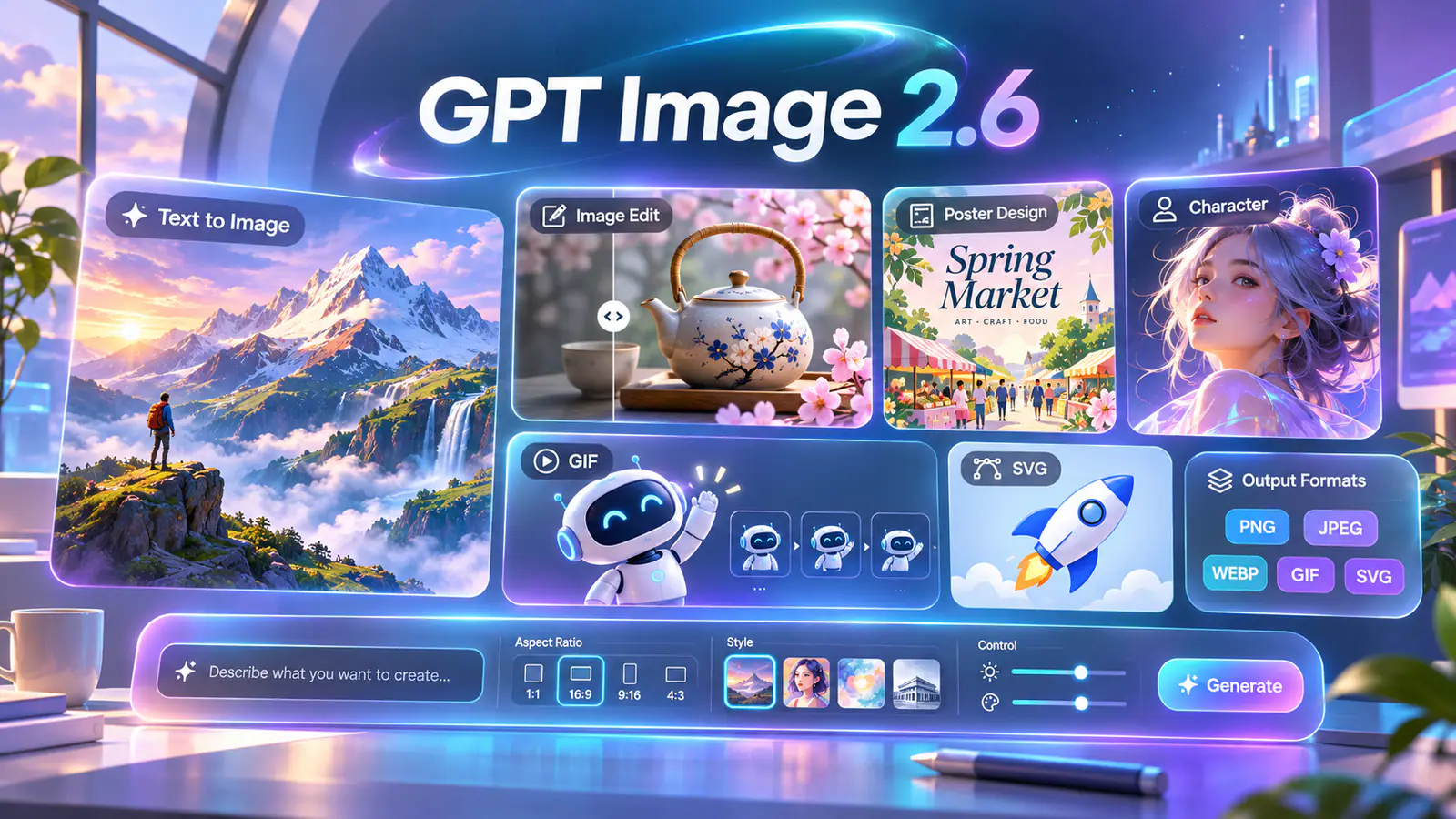
GPT Image 2.6 creative studio showing image generation, editing, posters, characters, GIF, and SVG examples.

GPT Image 2.6 AI Image Generator and Editor

Use GPT Image 2.6 on AI H3 Image to make a new image from text or edit a photo with a reference. Start with Flare to try different ideas, or choose Sunburst when the details of an edit matter. Use the same workspace to make an animated GIF from text or a picture, or switch to Text to Image to design an SVG logo or icon.

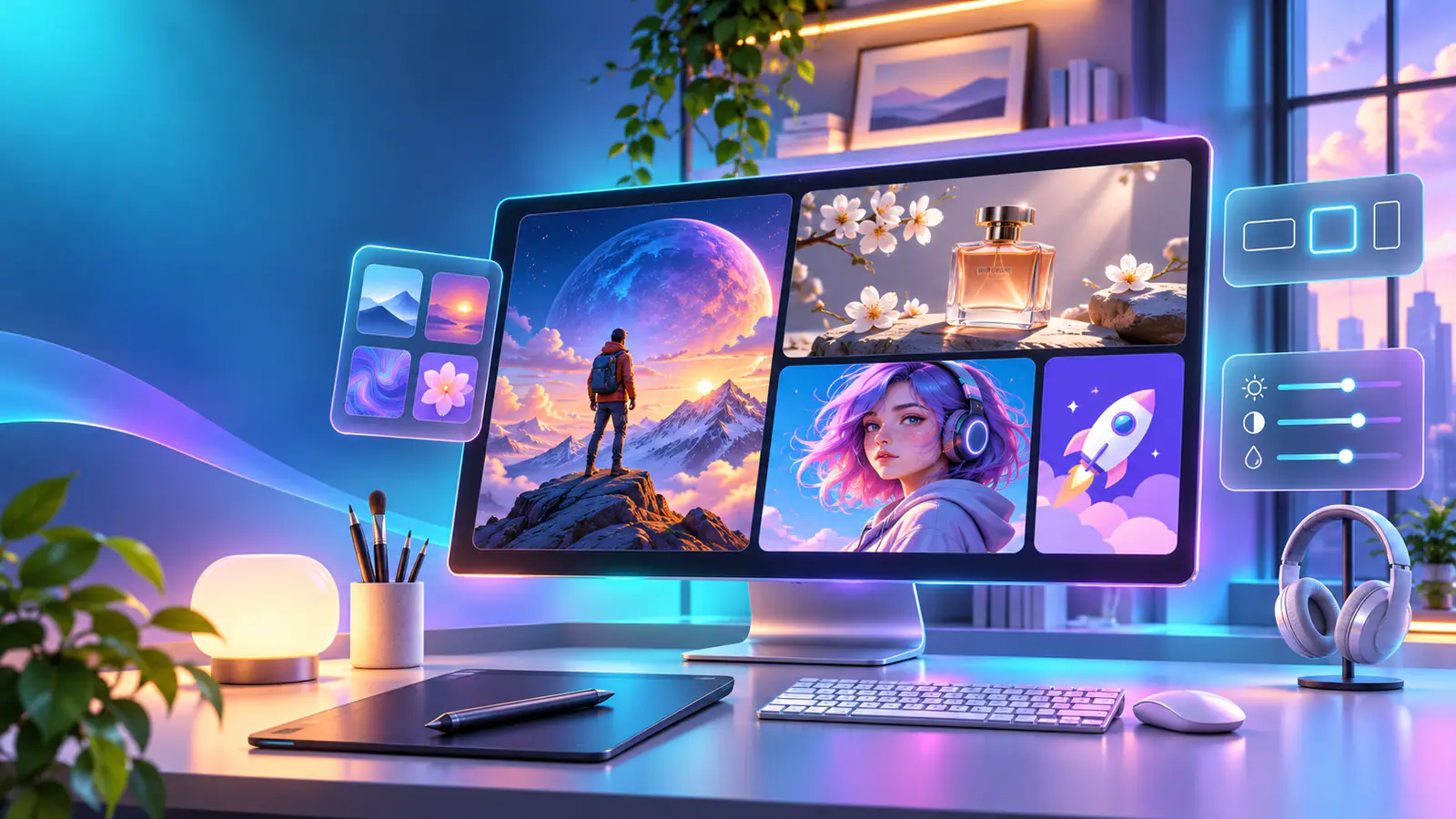
Creative workstation displaying a mountain scene, a perfume image, a character portrait, and image editing controls.

How to generate or edit an image with GPT Image 2.6

Choose a model and input mode first, then set the format you need: a still image, an animated GIF, or an SVG vector.

  1. Choose a starting point

    Select Text to Image for a new image, a GIF from a prompt, or an SVG vector. Select Image to Image to edit or animate a picture, then use Upload files to add your source. Choose a photo with a clear subject and check its local preview. You can add up to 16 reference images, with a 10 MB limit per uploaded image. Remove duplicates and explain the role of each reference when combining subjects or styles.

  2. Describe the image or motion

    Use Image Prompt to name the subject, setting, and details that matter. For an edit, say what should change and what should stay. For a GIF, describe a simple movement and how it returns to the starting pose. For an SVG, describe the shapes, colors, and composition of your logo or icon. Choose Aspect Ratio and Quality in Settings, then select PNG, JPEG, WebP, GIF, or SVG under Output Format as available for your input mode.

  3. Generate and review the result

    Review the required credits, then select Generate. Open the result to inspect the subject, lettering, and composition. For a GIF, watch the loop and check the transition back to the start. Download the result in your selected format. Save an SVG for further work in a vector editor, or keep a still image as a reference for another edit. When exploring variations, use Images to choose an output count; SVG generates one image per request.

GPT Image 2.6 examples for posters, photo edits, and GIFs

Try these three briefs to see how the instructions change with each task. Give the model the poster headline, the product details to keep, or the motion that should repeat.

Build a poster around the words that matter

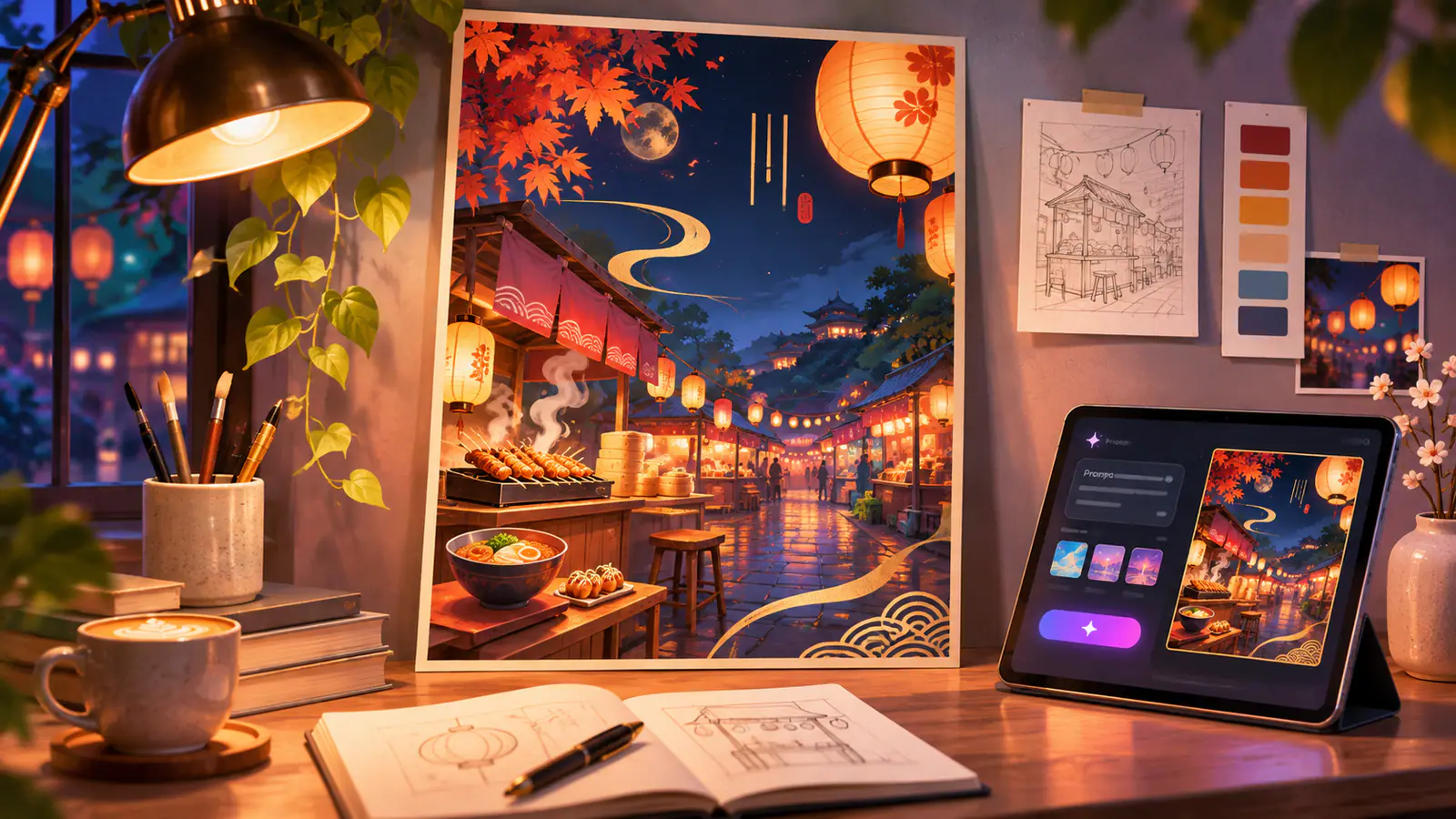
A poster needs a reading order as well as an attractive scene. Put the exact headline in quotation marks and describe where it should sit relative to the picture. Keep supporting copy short enough to judge at the size people will actually see. For a neighborhood night market, try: Design a vertical event poster with the headline "NIGHT MARKET" above a row of illustrated food stalls. Leave a clear area at the bottom for the date, with warm lantern light behind the stalls. Decide which words belong in the generated image and which details you will add later in a design editor. After generating, read every visible word and check whether the headline remains clear when the picture is reduced to a phone preview. If a long address or a small price list dominates the layout, reserve that area for manual typesetting instead of asking the illustration to carry the whole document.
Design a poster
Night market poster with lanterns and food stalls on a designer's desk.

Give a product a different setting

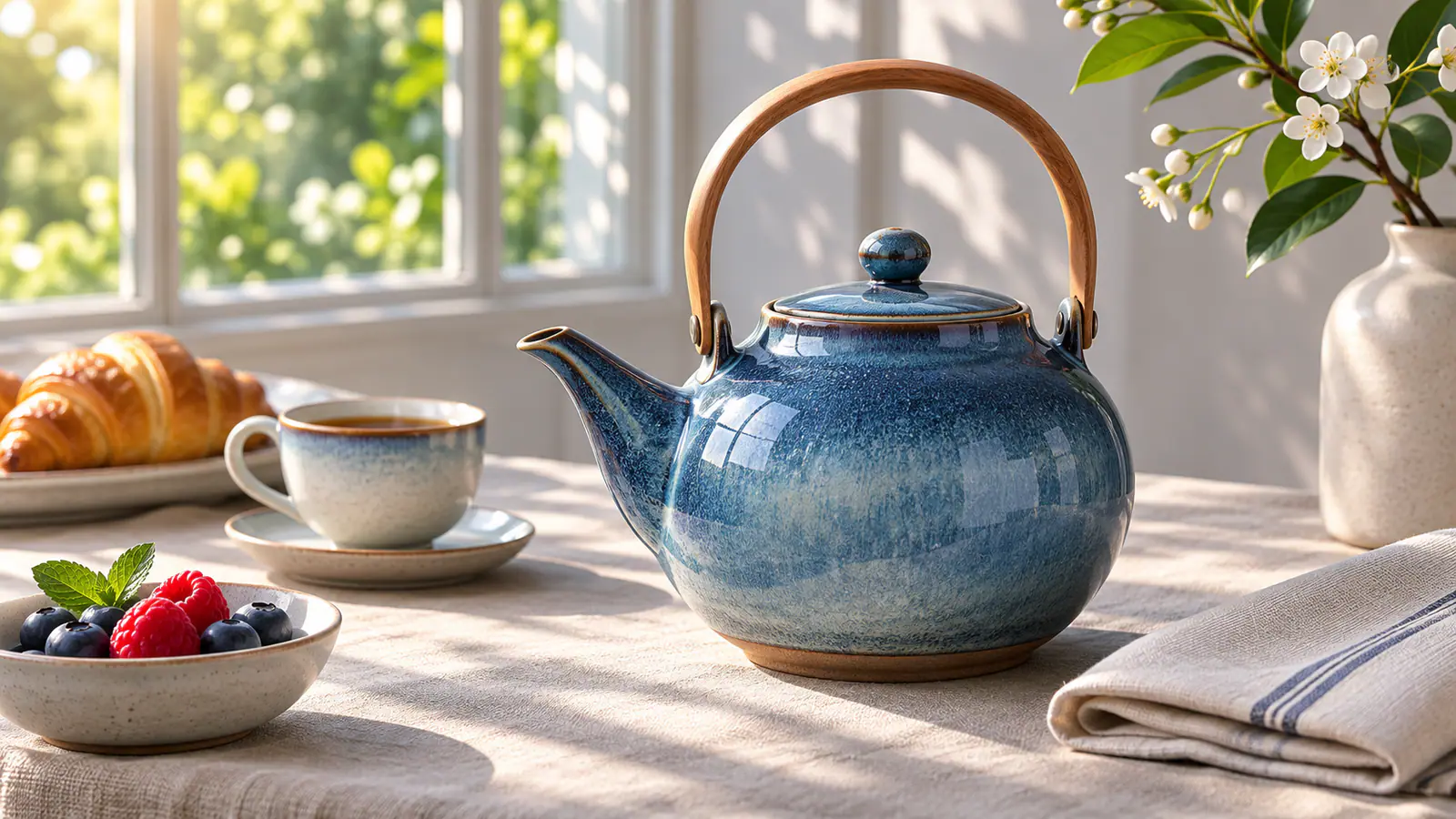
Use Image to Image when the product already exists and its appearance needs to anchor the scene. Start from a photograph where the shape, color, and label are visible, then describe the setting you want to change. For example: Place this ceramic teapot on a linen breakfast table beside a window. Keep its curved handle, blue glaze, and narrow spout; add soft morning shadows and a folded napkin. If you add another image for styling, explain which reference supplies the product and which supplies the atmosphere; avoid asking two different photographs to define the same object. Compare the resulting silhouette, proportions, and markings with the source before choosing a campaign visual.

Edit a product image
Blue ceramic teapot on a linen breakfast table beside a sunlit window.

Bring a character to life in an animated GIF

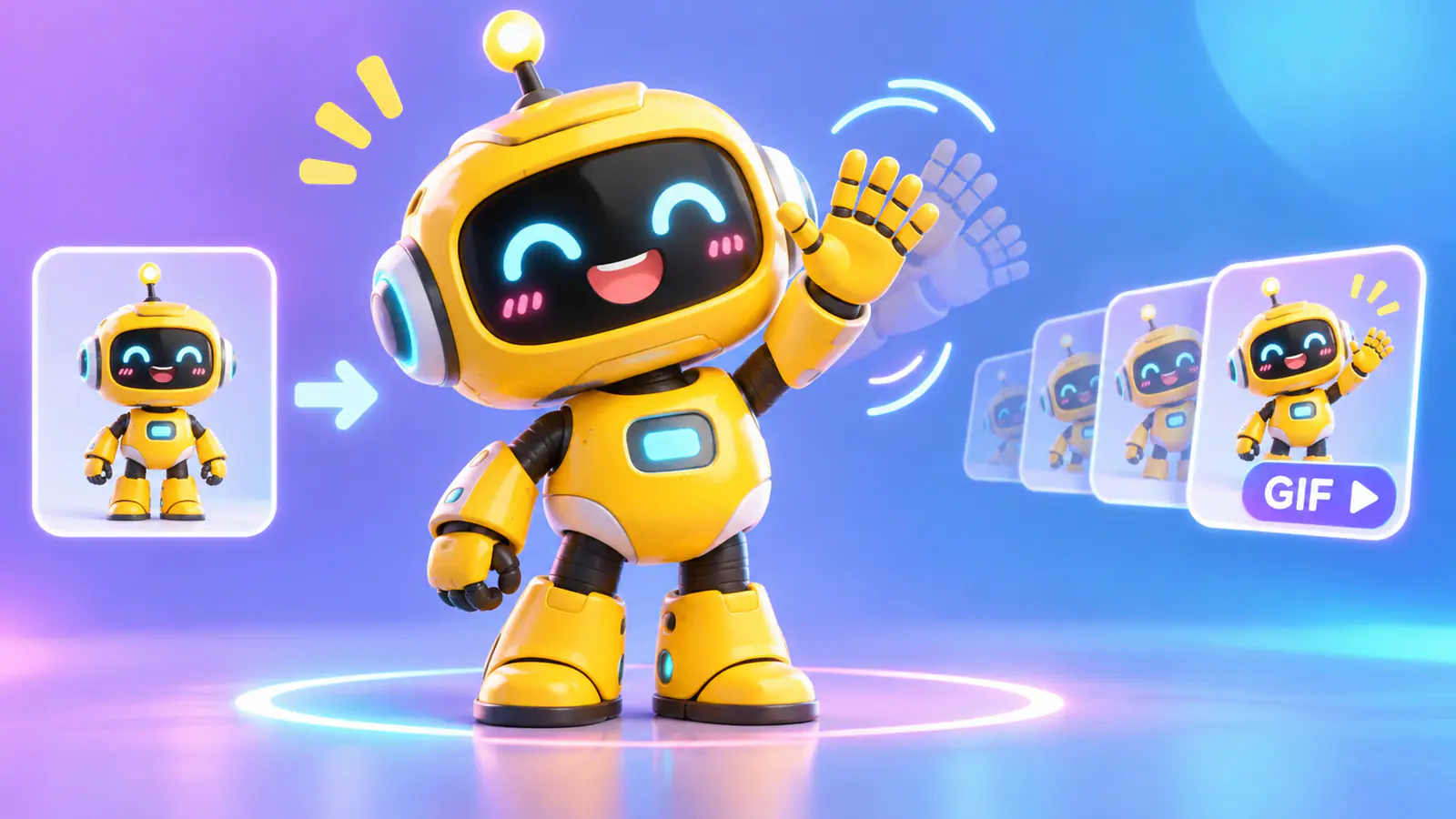
Turn a mascot, illustrated character, or familiar face into a small animation for a reaction, a product announcement, or a social post. Start with Image to Image if you already have the character, or describe a new one in Text to Image, then choose GIF in Output Format. Give the movement a clear beginning and return: a small yellow robot raises one hand, waves twice, and lowers it to its original pose. Keep the camera and background steady so the action is easy to read. With a reference image, identify details to retain, such as the face panel, glasses, or striped scarf. Preview the loop to see whether the gesture reads clearly and the final pose connects with the first. For a different reaction, reuse the same source character and change the action in your prompt.

Create a character GIF
Yellow robot waving beside illustrated animation frames on a purple and blue background.

GPT Image 2.6 settings and output formats

The right settings depend on where the result will go. Choose a frame and quality level, then pick the format that fits your layout or editing workflow.

Choose a frame before composing

Use 1:1 for a square placement, 9:16 for a tall mobile layout, or 16:9 for a wide slide. Auto lets the model choose the proportions. Matching the destination early helps you plan where the subject and lettering should sit, instead of finding that a later crop removes part of the image you wanted to keep.

Choose the right quality level

The workspace offers Low, Medium, and High quality settings. Start with Low to explore a composition, then consider a higher setting when the layout is ready and finer details matter. Quality controls rendering detail rather than naming a resolution tier. Review the displayed credit cost after changing quality or output format. Your reference photograph and instructions still guide what the model renders.

Animated GIF output from text or images

Choose GIF for moving reactions, character gestures, and short visual loops. Text to Image starts from your description; Image to Image uses a picture to guide the animation. A focused movement gives viewers one clear action to follow. Download the animated GIF for a placement that accepts GIF files, and check how it plays at the size you plan to use.

SVG vectors for logos and icons

Choose Text to Image and SVG for a logo, icon, or graphic built from shapes and colors. Describe the outline and palette, such as a flat orange fox icon inside a dark blue circle. The workspace creates one SVG per request. Download the vector file to resize it for different layouts or adjust its paths and colors in a vector editor. For detailed photographs, choose a still image format.

Six GPT Image 2.6 prompts to try

These example briefs show what to write for different results. Adapt the subject, the details to keep, and the output format to your project.

  • Control the lighting on a product shot

    Place a clear glass perfume bottle on warm gray stone. Light it from the upper left with a narrow window and leave empty space to the right for a headline. Keep the bottle edge sharp and cast a soft shadow.
    Product photographyExample prompt
  • Leave room for event details

    Create a square poster titled “PARK CLEANUP” with a simple illustration of gardening gloves below the headline. Leave the lower third empty for the date and meeting point.
    Poster designExample prompt
  • Change a photo background

    Replace the wall behind the bicycle with pale blue tile. Preserve the frame, wheel position, and lettering. Match the shadow beneath the tires to the light in the source photo.
    Image editingExample prompt
  • Frame a scene from eye level

    Illustrate a child with a yellow umbrella beside a rainy bus stop, seen from eye level. Keep the figure near the left edge and use the wet pavement to reflect the bus stop lights.
    IllustrationExample prompt
  • Design a simple SVG icon

    Design an SVG map pin with a white bicycle silhouette in the center. Use a single navy fill for the pin, keep the bike shapes simple, and leave room around the edges.
    SVG graphicsExample prompt
  • Create a gentle repeating motion

    Animate this candle flame as a seamless GIF. Let the flame lean slightly and then return to the starting shape. Hold the camera, glass jar, label, and background still.
    GIF animationExample prompt

GPT Image 2.6 FAQ

Compare the two variants and check which formats and account options apply before you generate.

GPT Image 2.6 is an OpenAI model family for image generation and editing. ChatGPT Images 2.6 is OpenAI's image tool inside ChatGPT. AI H3 Image is a separate workspace with its own controls and account. It lets you choose Flare or Sunburst and start with text or reference images.

OpenAI positions Flare for faster iteration and Sunburst for more detailed image work. Choose Flare when you want to compare several compositions for the same brief. Choose Sunburst when the edit needs to preserve details such as a product label or a character outfit. Review the credits shown for your settings before generating.

Start a project with GPT Image 2.6

Bring a text brief or a photo into the AI H3 Image workspace. Pick Flare or Sunburst, then choose a still image, GIF, or SVG based on what you want to make.